Help guide
Everything in the app, in the order you meet it. Can't find an answer? Send us a message.
1. Install and start
- On the download page, enter your email. Open the sign-in link we send you, fill in your name and college once, and click Download the installer. You can download it again from your account page any time.
- Open MDS-Clinical-Case-Album-Setup from your Downloads folder.
- If Windows shows “Windows protected your PC”, click More info and then Run anyway. The warning appears because the installer is new and not yet signed with a code-signing certificate.
- Follow the setup. It needs no administrator password. If your computer lacks Microsoft WebView2, which the app uses to show its editor, setup installs it.
- Start MDS Clinical Case Album from the Start menu or the desktop shortcut.
The app needs Windows 10 or 11 (64-bit). It works offline; the internet is only used for the licence.
2. Start a new album
Click New (or Ctrl+N). Fill in:
- Album or case title: the name of the album.
- Your name and Year: printed in the footer of every page, for example “Dr. Your Name, MDS Part II”.
- Department and College: printed in the header of every page.
- Orientation: portrait or landscape for the whole album. Single pages can be changed later.
- Margins: 25.4 mm (1 inch) to start. They can be wider, but never less than 20.3 mm (0.8 inch), so nothing gets too close to the edge.
- Start with Case photo pages (intraoral photos with OPG, procedure steps, prosthesis) or One blank page.
The app remembers your name and department for the next album.
Title pages and the certificate pages are best made in Word. This app is for the photo pages.
3. The screen
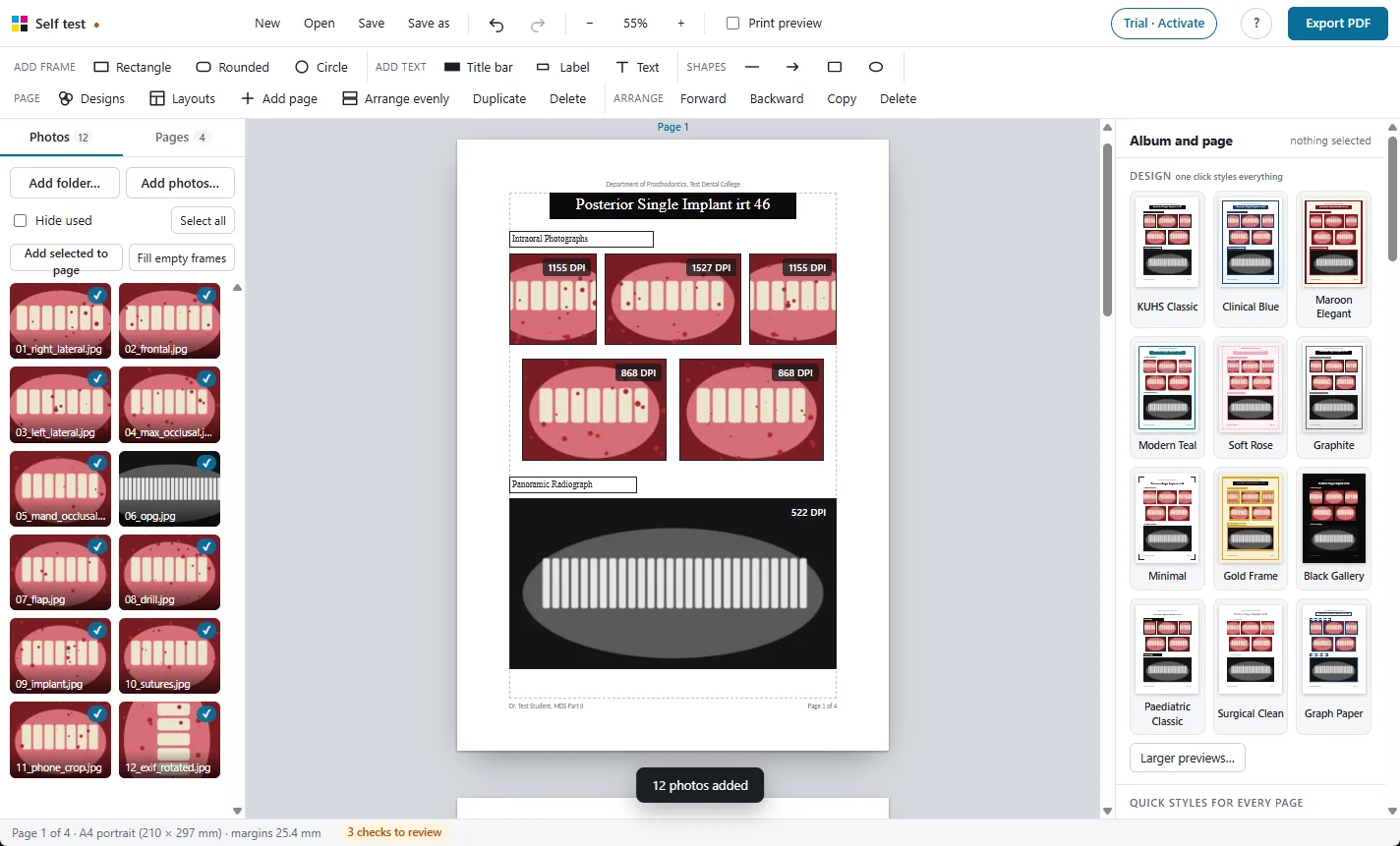
- Top bar: New, Open, Save, Save as, undo and redo, zoom, Print preview, the licence button, keyboard shortcuts (?) and Export PDF.
- Add frame, Add text, Shapes: insert a rectangle, rounded or circle frame; a title bar, label or text box; a line, arrow, rectangle or ellipse.
- Page and Arrange: Designs, Layouts, Add page, Arrange evenly, duplicate and delete; move the selected item forward or backward, copy or delete it.
- Photos and Pages (left): your photos, and thumbnails of every page.
- The page (middle): pages are stacked one below another. The page you are working on is the editable one; click another page to switch. The dashed line shows the margins.
- Side panel (right): settings for whatever is selected. With nothing selected it shows the album and page settings.
- Status bar (bottom): page number, size and margins, the position and DPI of the selected item, and the number of checks to review.
4. Add photos
- Add folder… adds every photo in a folder. Add photos… adds the files you pick. You can also drag photos or a whole folder from Windows Explorer onto the app.
- Photos are not copied: the album remembers where they are. Keep them in the same folder until the album is printed.
- Drag a photo from the panel onto a frame to put it there. Double-click an empty frame to choose a file.
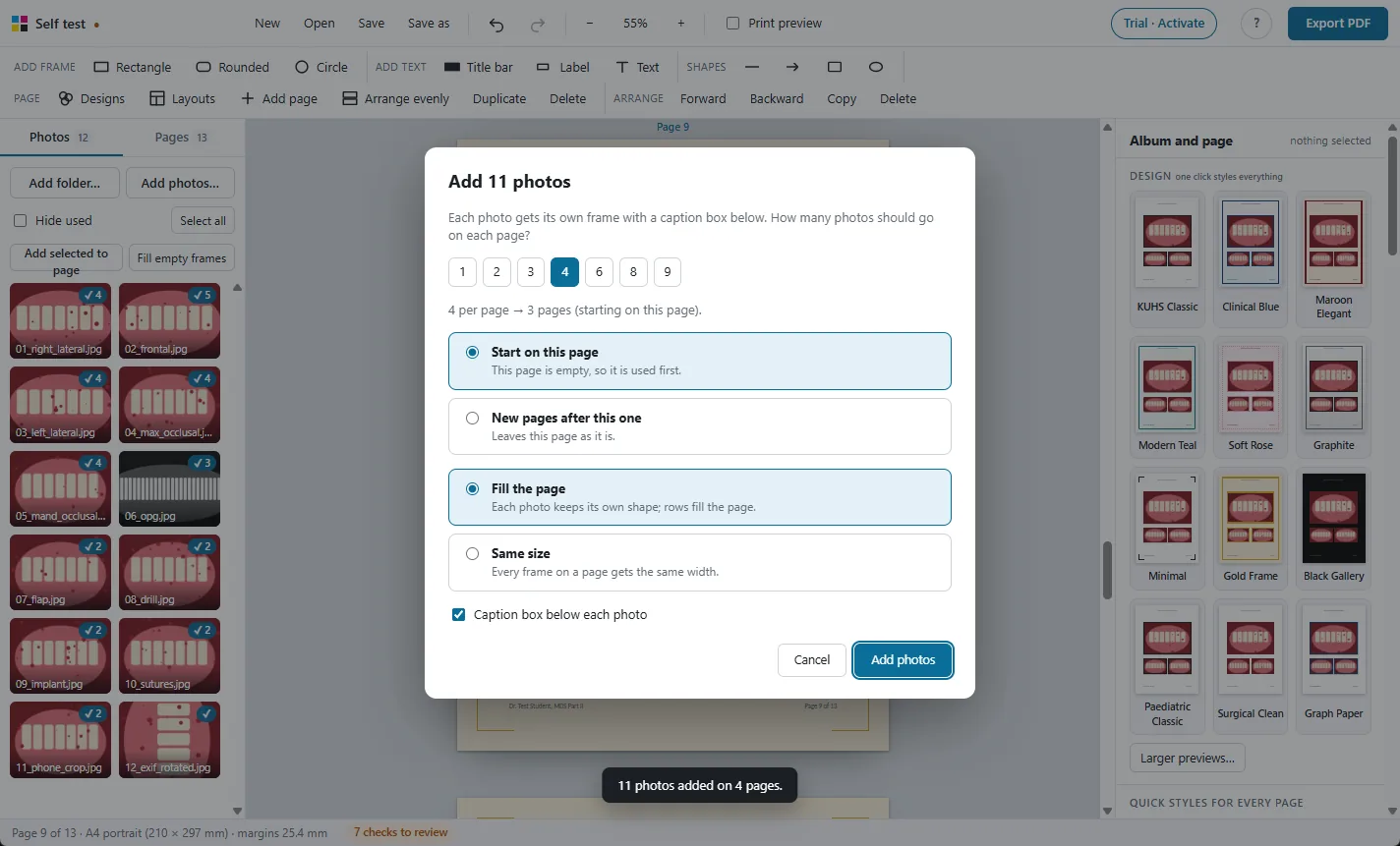
- Select photos in the panel (click, Ctrl+click, Shift+click or Select all) and click Add selected to page. Up to six go on the current page, each with a frame and a caption box. With more than six, the app asks how many photos you want on each page, whether to start on this page or after it, and whether to fill the page or make every frame the same size, then adds the pages.
- Fill empty frames puts the selected photos (or all unused ones) into the empty frames, in order.
- A tick on a photo means it is used; a number shows how many times. Hide used shows only the photos still to place.
5. Pages and layouts
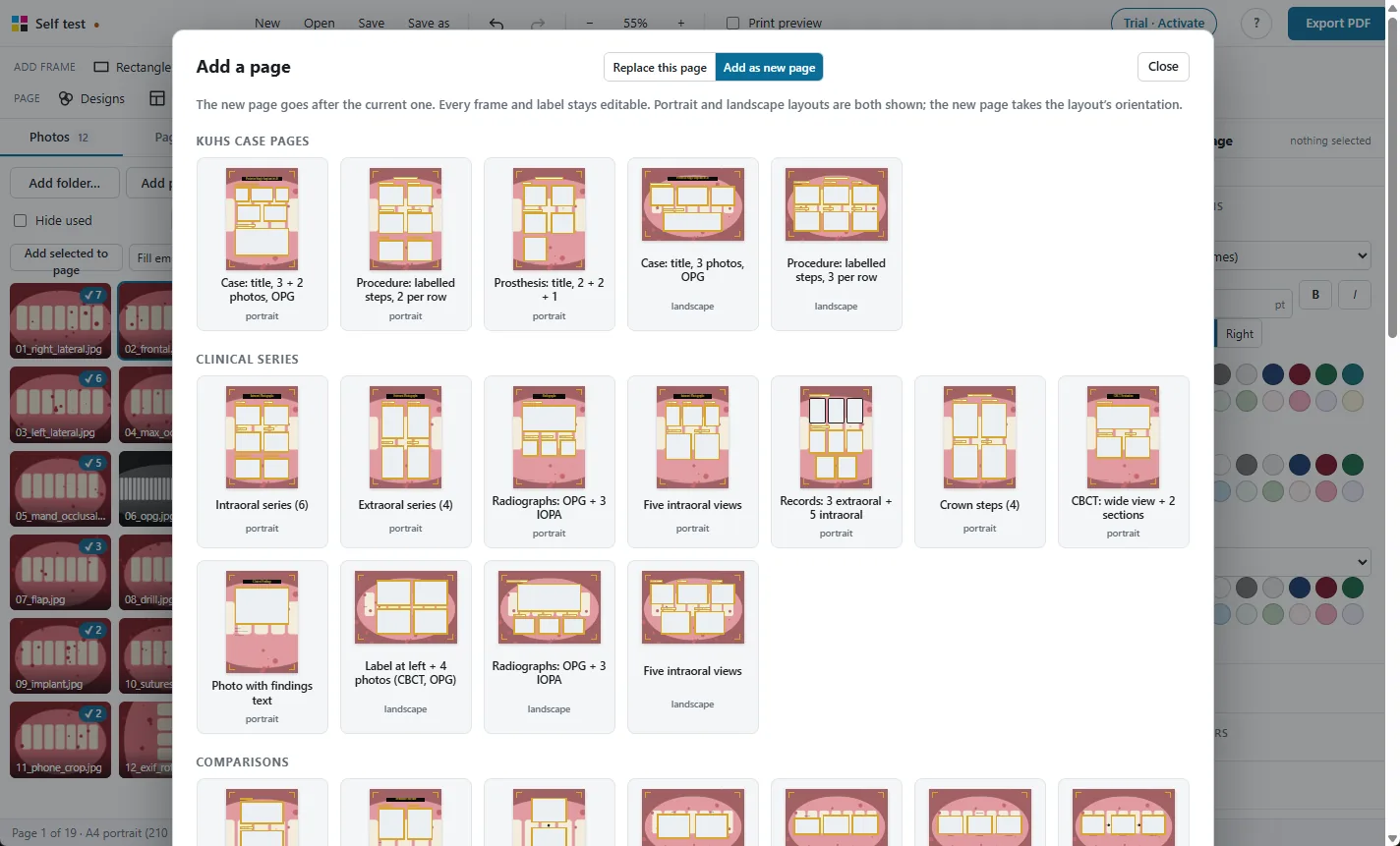
- Layouts opens the gallery of 98 ready layouts. Replace this page changes the current page's layout and moves its photos into the new frames in order. Add as new page adds a page after the current one.
- The Replace view shows layouts for the page's orientation. The Add view shows portrait and landscape layouts; a landscape layout makes a landscape page.
- Add page, Duplicate and Delete work on the current page. In the side panel, Move up and Move down reorder it. In the Pages tab, drag thumbnails to reorder.
- Orientation: set it for the whole album, or for this page only, in the side panel. The page's frames are scaled evenly to fit, never stretched.
- Page Up and Page Down go to the previous and next page.
6. Photo frames
- Add a frame with Rectangle, Rounded or Circle. It goes to the first free space on the page.
- Drag a frame to move it; drag a corner to resize. Frames keep the photo's proportions; hold Shift to stretch. Hold Alt while dragging to move without snapping. Arrow keys nudge by 1 mm (Shift 5 mm, Alt 0.2 mm).
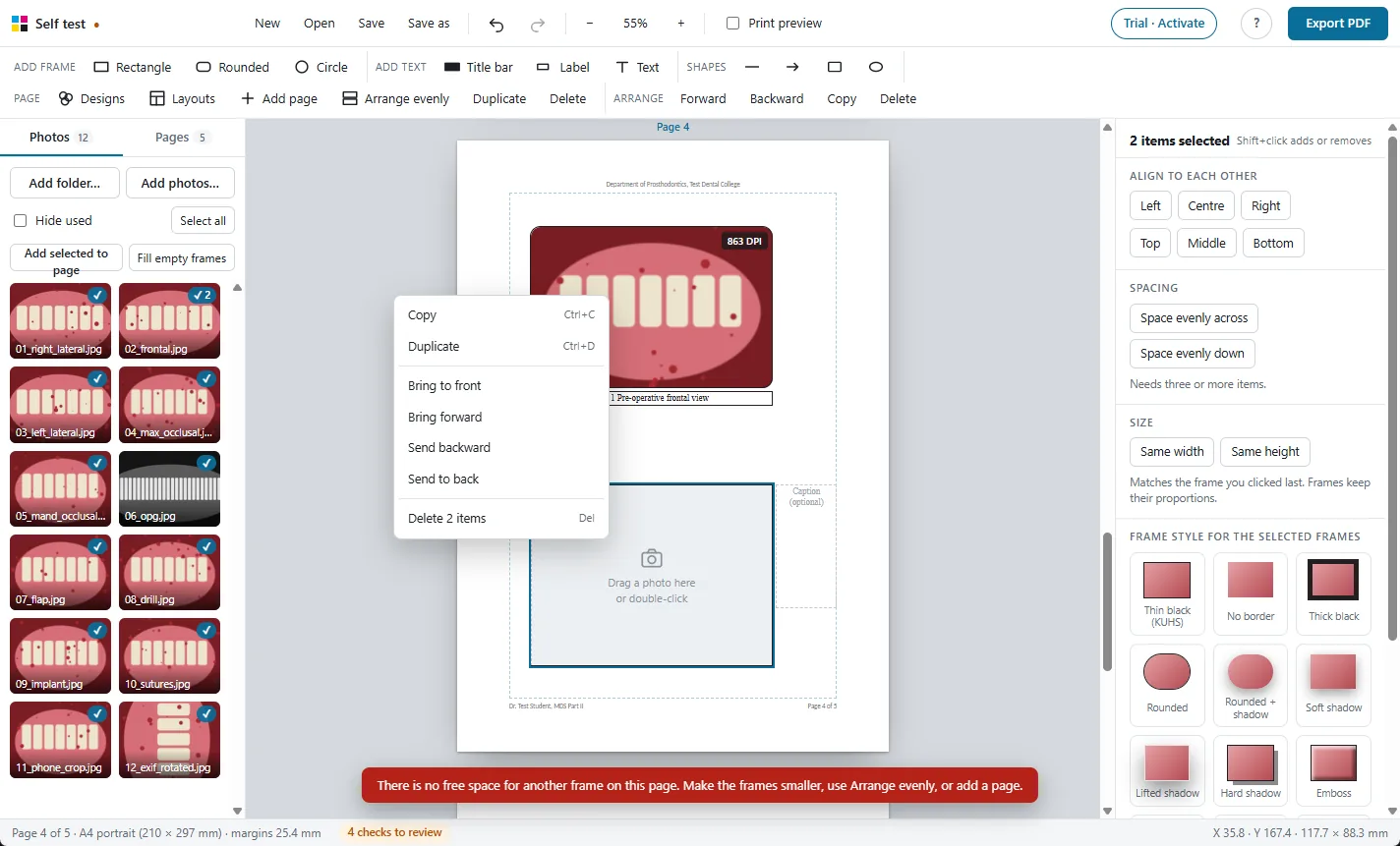
- Frames never overlap. A frame and its captions are one block, and blocks stay 3 mm apart. A move or resize that would overlap is stopped. If a page is full, make frames smaller, use Arrange evenly, or add a page.
- Space between frames (side panel, nothing selected, Album) changes that gap for the whole album, from 0 to 10 mm. At 0, photos can sit edge to edge for tight collages.
- For an inset or close-up on top of another photo (for example a circle close-up over the main photo), select the frame and tick Can overlap other frames. That frame can then go anywhere, and Arrange evenly leaves it where you put it.
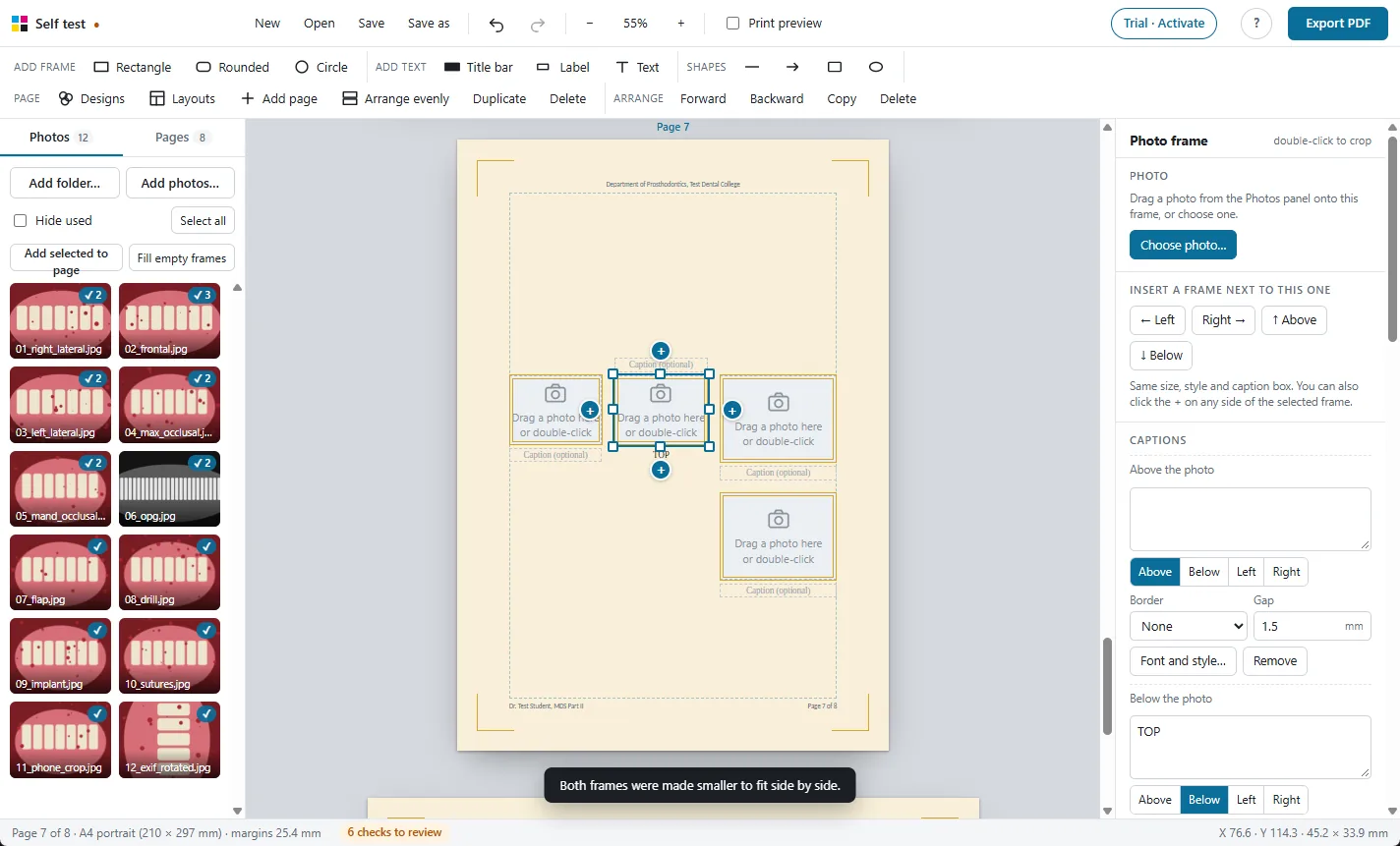
- The + buttons around a selected frame insert the next frame to its left, right, above or below, with the same size, style and caption. Ctrl+Shift+arrow does the same. When there is no room, both frames shrink evenly.
- Arrange evenly makes every frame on the page the same width, as large as fits, each in its photo's own shape. Fill page (side panel, nothing selected) builds rows that fill the page and keep each photo's shape.
- You can also type the position and size in millimetres in the side panel.
7. Crop, rotate and adjust
- Double-click a photo (or click Adjust crop) to crop: drag to move the photo inside the frame, scroll to zoom. Click Done when finished, or Reset to start again.
- Fill frame fills the frame and crops the edges. Show whole shows the whole photo inside the frame.
- Rotate left or right with the arrow buttons.
- Frame shape: make the frame match the photo (Original) or 1:1, 4:3, 3:2, 16:9 or 3:4.
- Adjust photo: brightness, contrast and saturation, and Black and white for radiographs. Reset clears them. The PDF uses the same settings.
- Replace… puts another photo in the frame; Remove empties it.
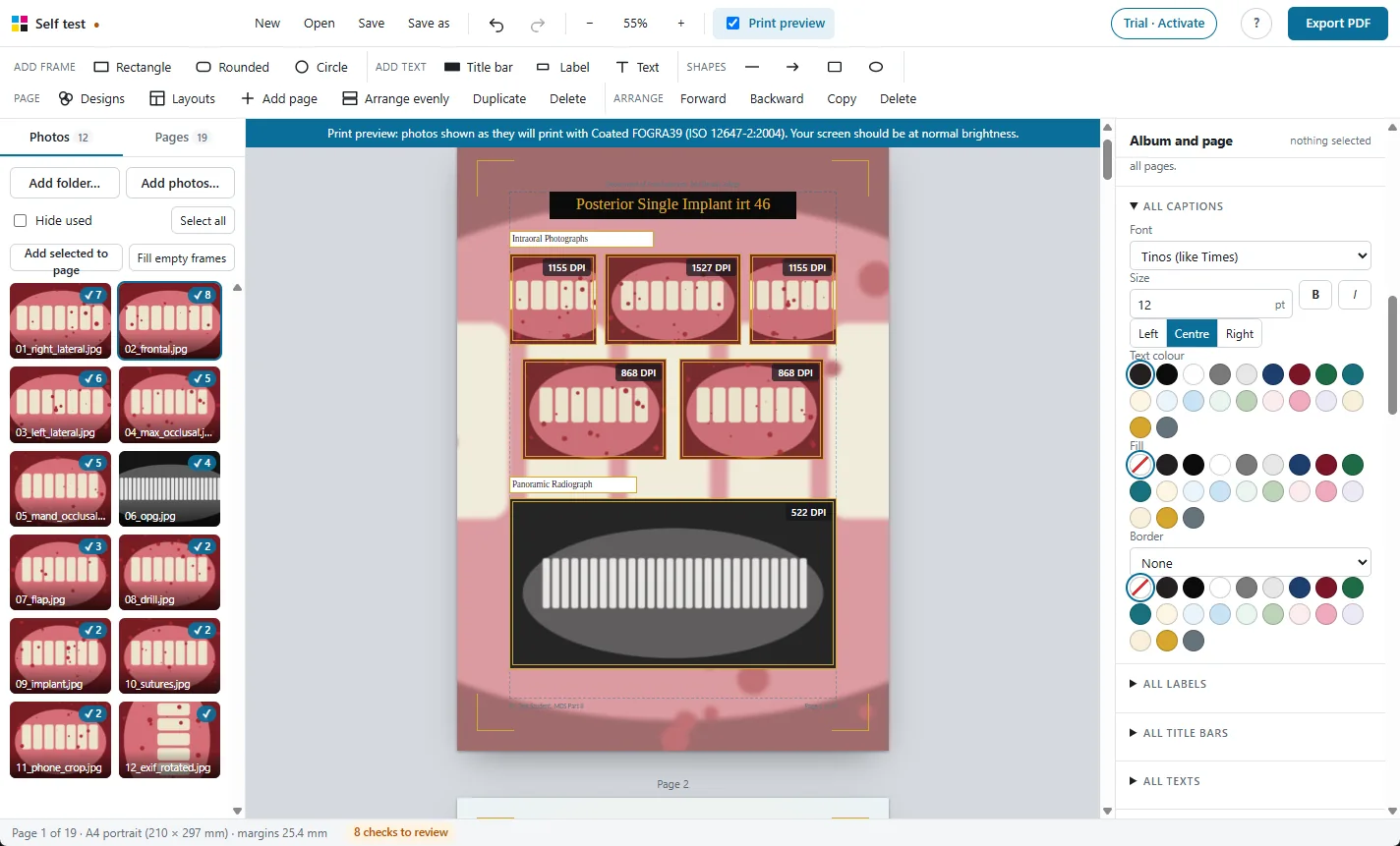
- The DPI shown on each photo is how sharp it will print at that size. 300 DPI is ideal; below 200 DPI may look soft. Make the frame smaller or use a larger photo.
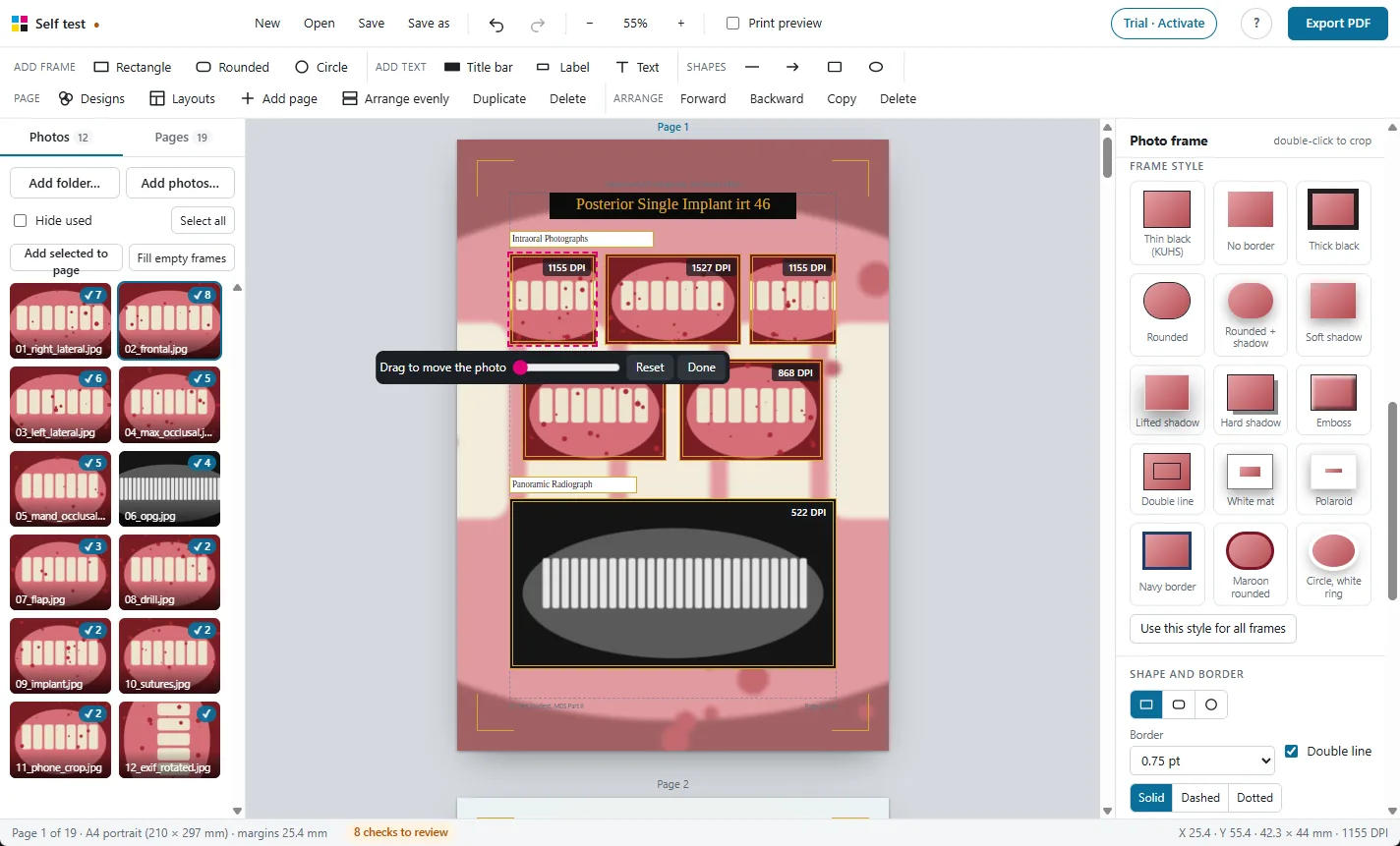
Your original photo files are never changed. Crops and adjustments are saved in the album.
8. Captions and text
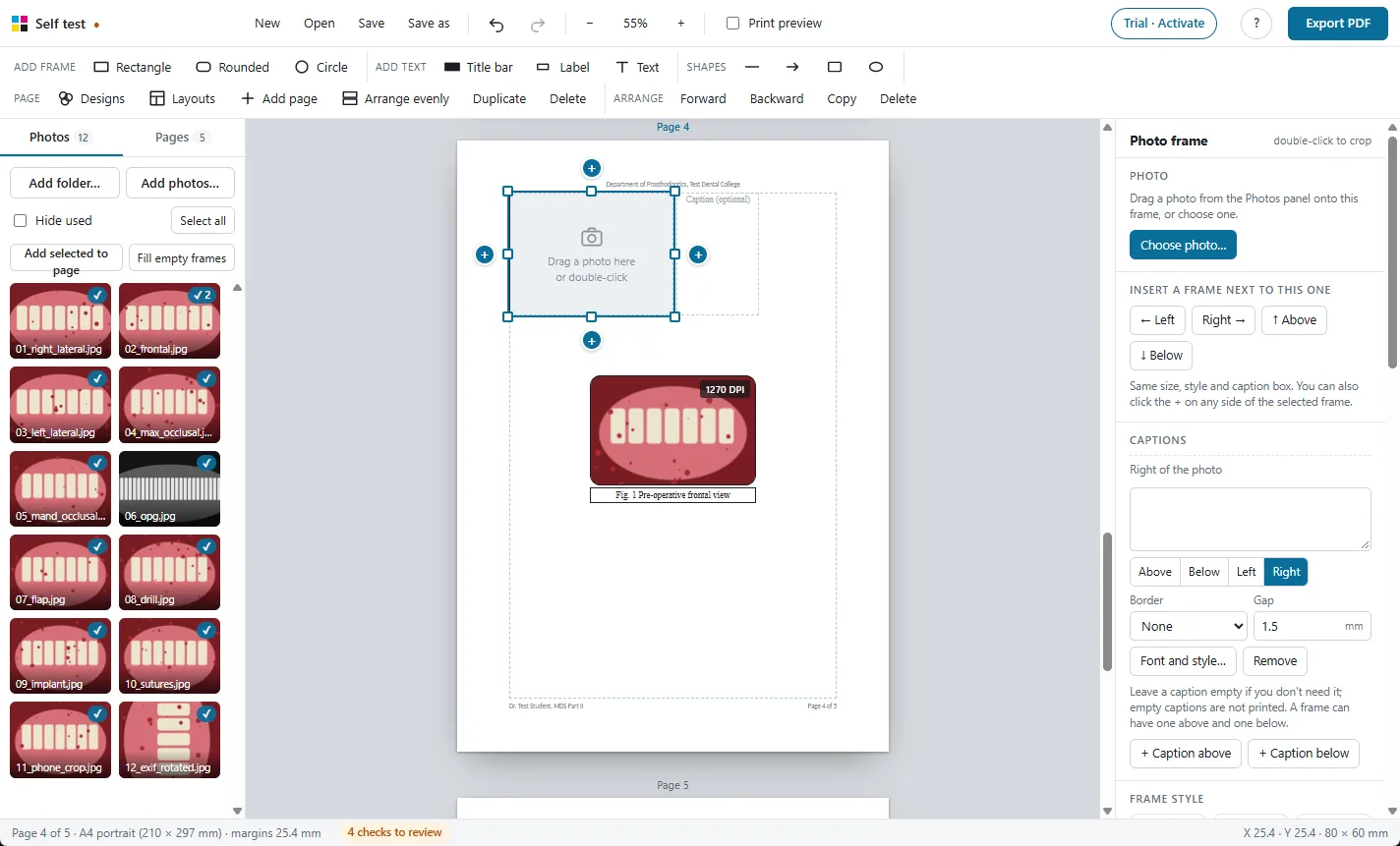
- Every inserted frame gets a caption box below it. Select the frame to see its captions in the side panel: type the text, move it Above, Below, Left or Right, set the gap and a border, or add a second caption with + Caption above.
- Click Font and style… to select the caption itself and change its font, size, colour and alignment.
- An empty caption is not printed, so leave it empty if you do not need it.
- Title bar, Label and Text add text boxes. Double-click a box (or press Enter) to type.
- Table (Add text bar) inserts a table with rows and columns, like the cephalometric findings page (the Orthodontics layouts have one ready with the usual parameters). Double-click a cell on the page to type in it: Enter adds a line in the same cell (to stack values like ANS–N and PNS–N), Tab and Shift+Tab move to the next or previous cell, Esc or a click elsewhere finishes. The side panel can edit the cells too, and choose each row's type (Header, Section or Sub-heading rows run across the table and are shaded), insert, move or remove rows with + ↑ ↓ ×, add or remove columns and set their widths. Options: values left or centred, first column bold or italic, lines (choose None to hide them), the shading colours, and Spread rows to fill the box: drag the table taller and the rows grow evenly.
- Details (Add text bar) inserts a list with hidden lines: label, colon and value columns, so every colon sits in one line and long values wrap under the value. The Patient details layout has one ready. In the side panel, edit the Rows: type each label and value, use + Add row to insert a row, the arrows to reorder and × to remove. Fit label column makes the label column as wide as the longest label; Space between rows spreads the rows; Lines between rows shows thin lines; Bullets adds a bullet before each label.
- Fit box to text makes a label or title box just big enough for its words, so short labels like “PRE OP” do not wrap.
9. Styles and fonts
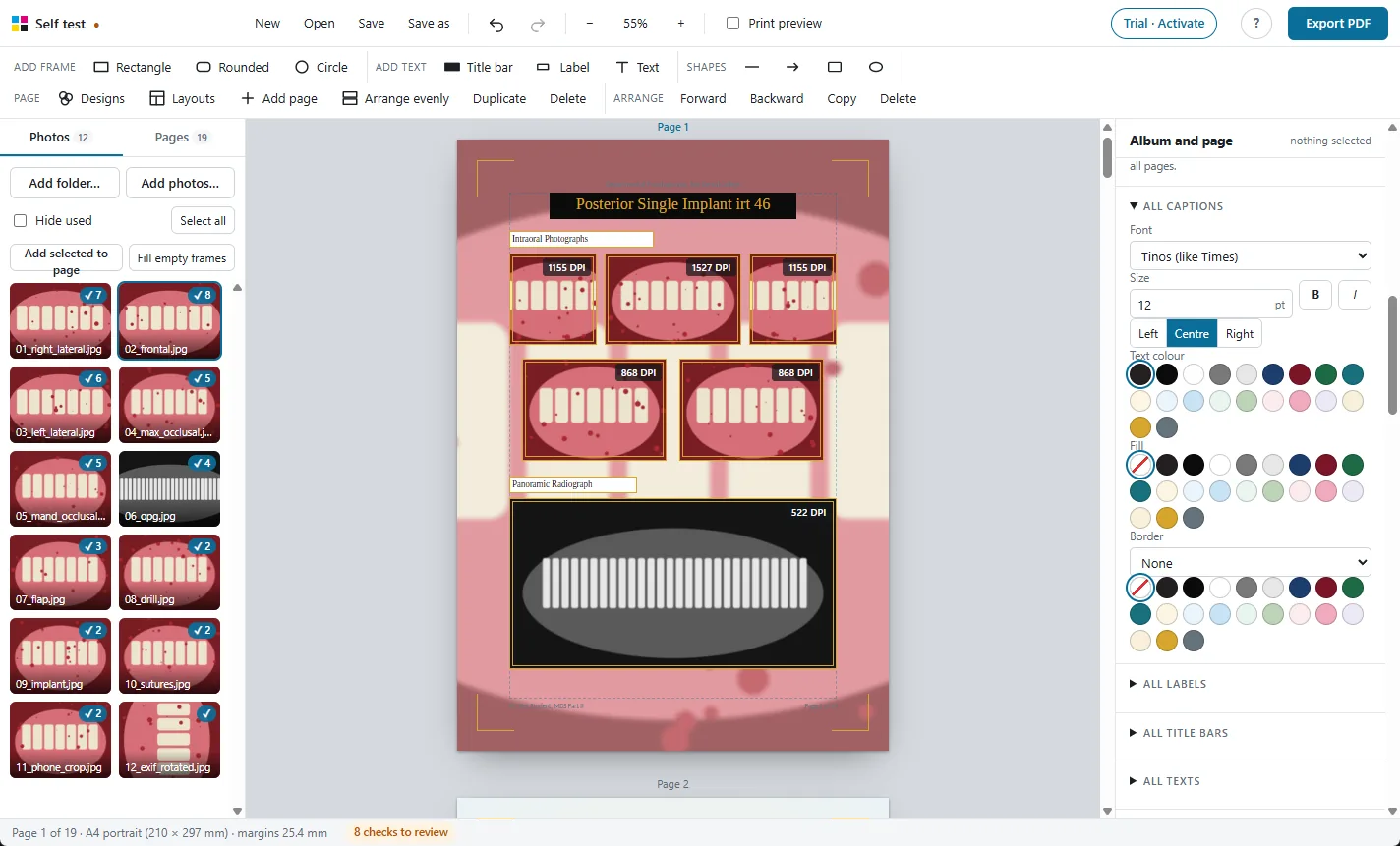
Fonts for the whole album
Click an empty part of the screen so nothing is selected. In the side panel, Fonts on every page has All captions, All labels, All title bars and All texts. A change there applies to every box of that kind on every page. New albums use Times New Roman, 12 pt for captions.
Style one box, then use it everywhere
Select a text box and change it in the side panel. Changes apply to that box only, until you click Use for all, which makes it the style of every box of that kind. Reset returns the box to the album style.
Frame and box styles
- A selected frame shows 15 frame styles: thin black (KUHS), thick, rounded, shadows, emboss, double line, white mat, Polaroid and more. Use this style for all frames applies it to the whole album.
- A selected text box shows 8 box styles: outline, black, navy or maroon bar, rounded tag and others.
- Border lines can be solid, dashed or dotted, in any of the album colours.
- Copy style and Paste style (Ctrl+Alt+C, Ctrl+Alt+V) copy the look of one item onto others.
10. Designs, backgrounds, header and footer
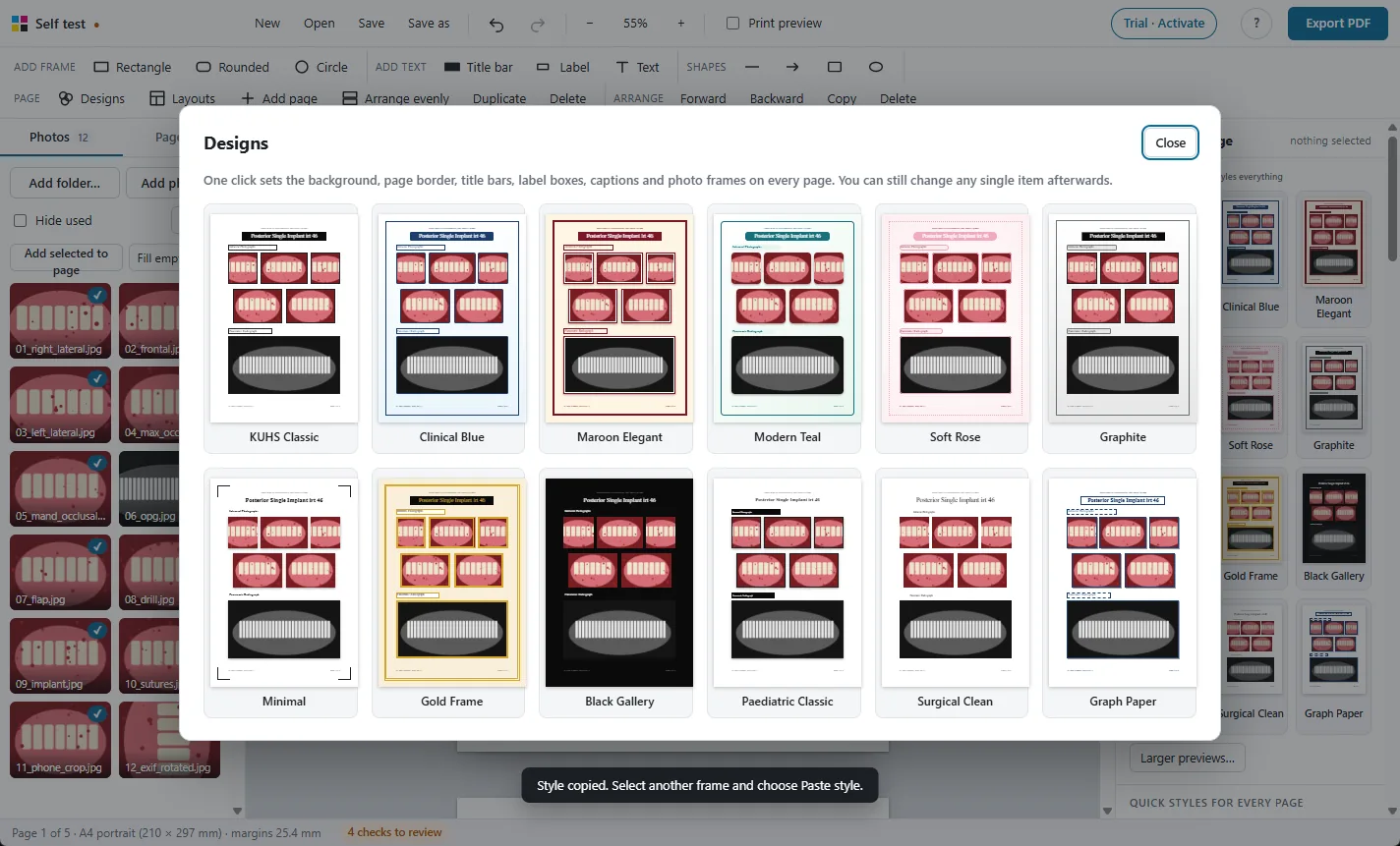
- Designs (top bar or side panel) restyles the whole album in one click: background, page border, title bars, labels, captions and frames. Twelve designs; Larger previews… shows them big. Ctrl+Z undoes it.
- Quick styles for every page sets one style for all title bars, all label boxes, all captions or all photo frames.
- Background: None, a colour, a gradient, a glow, or a photo (choose a file or use the selected photo, with a fade slider). Add dots, lines or a grid. Tick Only on this page to change just the current page. Clicking a design again brings back that design's background.
- Page border: thin, thick, double, rounded, dashed, dotted or corner brackets, in any album colour. It sits in the margin, clear of the photos.
- Header and footer: tick Header on every page and Footer on every page and type the text, and choose left, centre or right for each. Page numbers adds a number in the style you pick (“Page 1 of 20”, “Page 1”, “1” or “1 / 20”), on the left, centre or right. First page number sets where counting starts, for example 3 when the title and certificate pages come from Word. Set the font, size, bold, italic and colour, and add a thin line under the header and above the footer if you like. They sit just outside the photo area so binding and trimming do not cut them.
- On any page, Hide the header on this page or Hide the footer and page number on this page (side panel, nothing selected, This page). A page can also have its own header text, such as the case name; leave it empty to use the album header.
11. Lines, arrows and shapes
- Add a line, an arrow, a curved arrow, a rectangle or an ellipse from Shapes. Arrows can point either way or both ways, across, down or on a slant. A curved arrow has a Bend setting; a minus value bends it the other way.
- Set the line width, colour, dashes and fill in the side panel.
- To hide a patient's eyes, draw a rectangle over them and fill it with black. It prints on top of the photo; your original file is not changed.
12. Working with several items
- Shift+click to add items to the selection, or drag on an empty part of the page to select with a box. Ctrl+A selects everything on the page.
- With several selected, the side panel offers align (left, centre, right, top, middle, bottom), Space evenly across or down, and for frames Same width or Same height (matching the frame you clicked last). A change that would make frames overlap is undone.
- Right-click anything for a menu: copy, duplicate, bring forward or send back, add a caption, delete.
13. Checks and print preview
The status bar shows how many checks there are to review. Click it to see the list; click an item to go to it. The app checks for:
- photos that will print below 200 DPI;
- empty frames (printed as an empty box: delete them if not needed);
- frames that overlap or touch;
- photos no longer in their folder;
- fonts not installed on this computer.
Tick Print preview in the top bar to see photos as they will print with the selected press profile. A bar above the page names the profile. Use a screen at normal brightness with night mode off for the closest match.
14. Export the PDF
- Click Export PDF (or Ctrl+E).
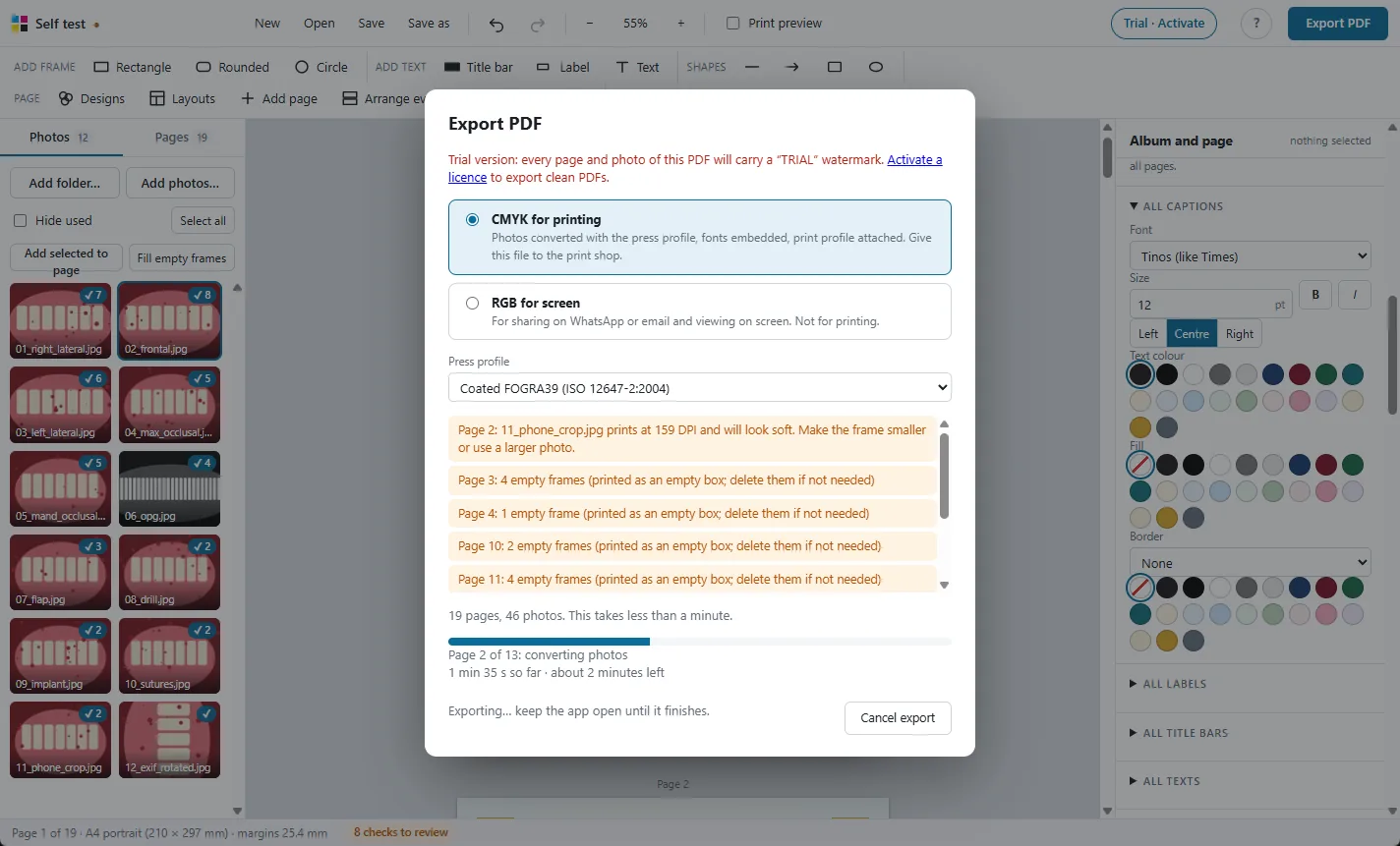
- Choose CMYK for printing for the print shop, or RGB for screen for WhatsApp and email.
- Choose the Press profile. Ask your print shop which one they use; FOGRA39 is common.
- Read the checks, then click Export… and choose where to save.
Every photo is converted at full size, so a large album takes several minutes. The dialog shows the page it is on, the time so far and the time left. Keep the app open until it finishes. Cancel export stops it; no PDF is saved.
In the 30-day free trial, every page and photo of the PDF carries a TRIAL watermark. After 30 days, exporting needs a licence; the app still opens, edits and saves your albums.
15. Save, open and autosave
- Save (Ctrl+S) saves the album as a .mdsalbum project file. Open (Ctrl+O) opens one; double-clicking a project file in Windows opens it too.
- The project file holds the layout, text and settings, and where each photo is. The photos themselves stay in their folders.
- Autosave keeps a copy as you work. If the app closes before you save, the next start offers to recover the album.
- Moving to another computer? Copy the project file together with the photos, keeping them in the same folder as the project. A missing photo is marked in its frame; select it and click Find the file….
- Undo and redo: Ctrl+Z and Ctrl+Y, up to 120 steps.
16. Licence
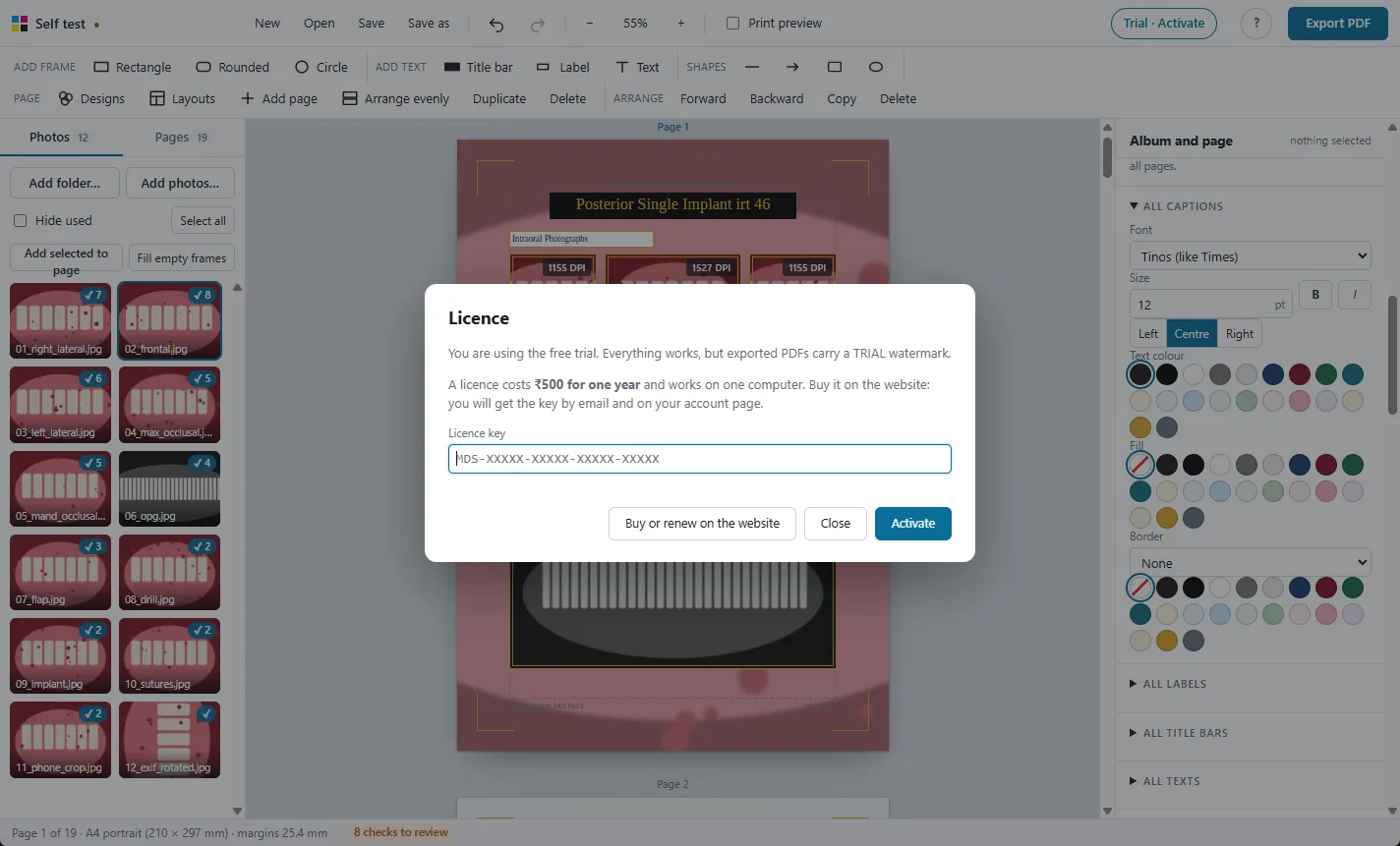
- Buy a licence on your licence page: sign in with your email, pay ₹500 with Razorpay. The key appears on the page and is emailed to you.
- In the app, click Trial · Activate at the top, paste the key and click Activate. The computer must be online.
- The button changes to Licensed. Export again and the watermark is gone.
- The licence lasts one year on one computer. Thirty days before it ends the app reminds you; renewing on the website adds a year to the same key, and Check now picks it up straight away.
- The app checks the licence online about every two weeks and works offline for up to 30 days between checks.
- New computer: on your licence page choose Move to a new computer (once in 90 days), then activate on the new one.
17. Keyboard shortcuts
Press ? in the app to see them.
| Ctrl+S / Ctrl+O / Ctrl+N | Save / open / new album |
|---|---|
| Ctrl+E | Export PDF |
| Ctrl+Z / Ctrl+Y | Undo / redo |
| Click, Shift+click | Select, add to selection |
| Drag on an empty part of the page | Select with a box |
| Ctrl+A | Select everything on the page |
| Double-click a photo | Crop: drag to move, scroll to zoom |
| Double-click text, or Enter | Type |
| Arrow keys | Nudge 1 mm (Shift 5 mm, Alt 0.2 mm) |
| Ctrl+Shift+arrow | Insert a frame on that side of the selected frame |
| Shift while resizing | Stretch a frame out of proportion |
| Alt while dragging | Move without snapping |
| Ctrl+C / Ctrl+V | Copy / paste |
| Ctrl+D | Duplicate |
| Ctrl+Alt+C / Ctrl+Alt+V | Copy style / paste style |
| Delete | Delete the selected items |
| Page Up / Page Down | Previous / next page |
| Ctrl + mouse wheel | Zoom |
| Ctrl+0 | Fit the page in the window |
| Right-click | More actions |
18. Problems and fixes
“Windows protected your PC” when installing
Click More info, then Run anyway. The installer is new and not yet signed with a code-signing certificate.
“There is no free space for another frame on this page”
Frames keep 3 mm apart and never overlap. Make the frames smaller, click Arrange evenly, or add a page.
A photo shows “not in its folder any more”
The photo was moved or renamed. Select the frame and click Find the file….
A photo prints soft
Its DPI is too low for the frame size. Make the frame smaller, crop less, or use the original camera photo instead of a copy sent over WhatsApp.
The printed colours are different from the screen
Check that you exported CMYK for printing with the press profile your print shop uses, and that the shop prints the PDF as it is, without its own colour correction. Turn on Print preview to see the expected result.
Activation says the key is used on another computer
A key works on one computer. On your licence page choose Move to a new computer, then activate again.
“Connect to the internet so the licence can be checked”
The app has been offline for 30 days. Connect once; it checks the licence and carries on.
“This computer's date looks wrong”
Set the correct date and time in Windows, or connect to the internet so the licence can be checked.
The app closed before I saved
Start it again and choose to recover the album.