Case albums that print the way they look on screen
MDS Clinical Case Album is a Windows app for MDS students. Lay out your case photos on A4 pages with ready KUHS-style layouts, then export a CMYK PDF made for the press that will print it.
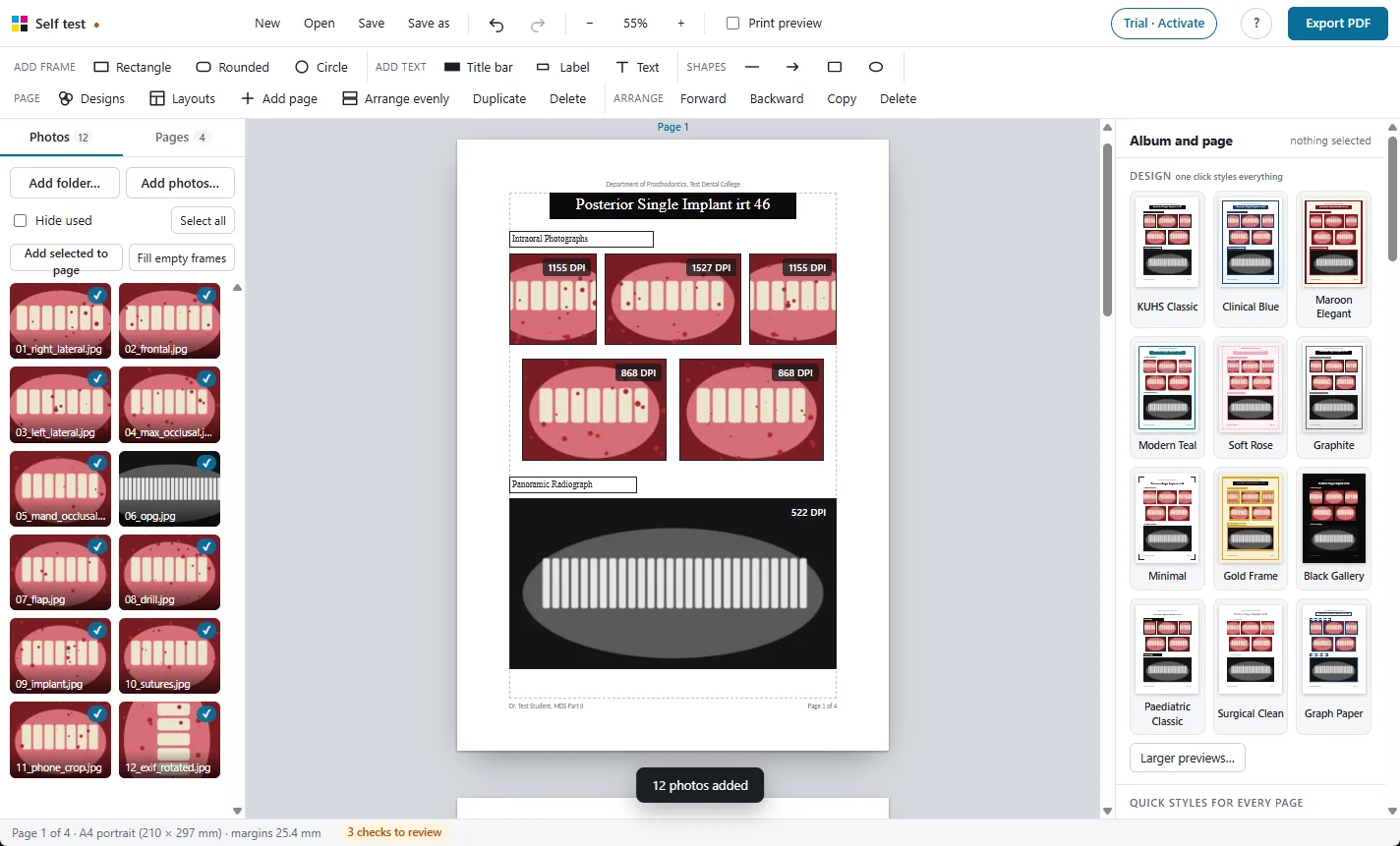
Why albums made in Word disappoint on paper
Word and PowerPoint save photos in RGB, the colours of a screen. The print shop's driver then guesses how to turn them into ink, and clinical colours suffer first.
Gingiva turns dull
Healthy coral-pink tissue prints flat and grey, so healthy and inflamed gingiva look alike.
Reds go muddy
Bleeding points, inflamed tissue and flap margins drift toward brown.
Every shop prints differently
The same file gives a different result at each shop, because each driver converts colours its own way.
Hours lost aligning photos
Pictures jump when text moves, label boxes drift, and rows never line up the same on every page.
Blurry photos found too late
A cropped phone photo looks sharp on screen and prints soft. Nothing warns you until it is on paper.
No uniform look
Fonts, borders and headers drift from page to page, and fixing them means editing every box by hand.
From photo folder to print shop in four steps
No design skills needed: each step is a click or a drag.
Add your photos
Open a folder of case photos. They stay where they are on your computer.
Choose layouts
Pick KUHS-style case pages, clinical series or comparisons, and drop photos into the frames.
Pick a design
One click sets the background, page border, title bars, captions and frames on every page.
Export the PDF
Get a CMYK PDF converted for the press. Hand it to the print shop as it is.
Built for clinical photos, not office documents
Every frame keeps the photo's proportions, gets its own caption, and stays 3 mm clear of the next one. Arrange evenly makes every frame on a page the same size in one click.
Before you export, the app warns about photos that will print soft, empty frames and anything overlapping.
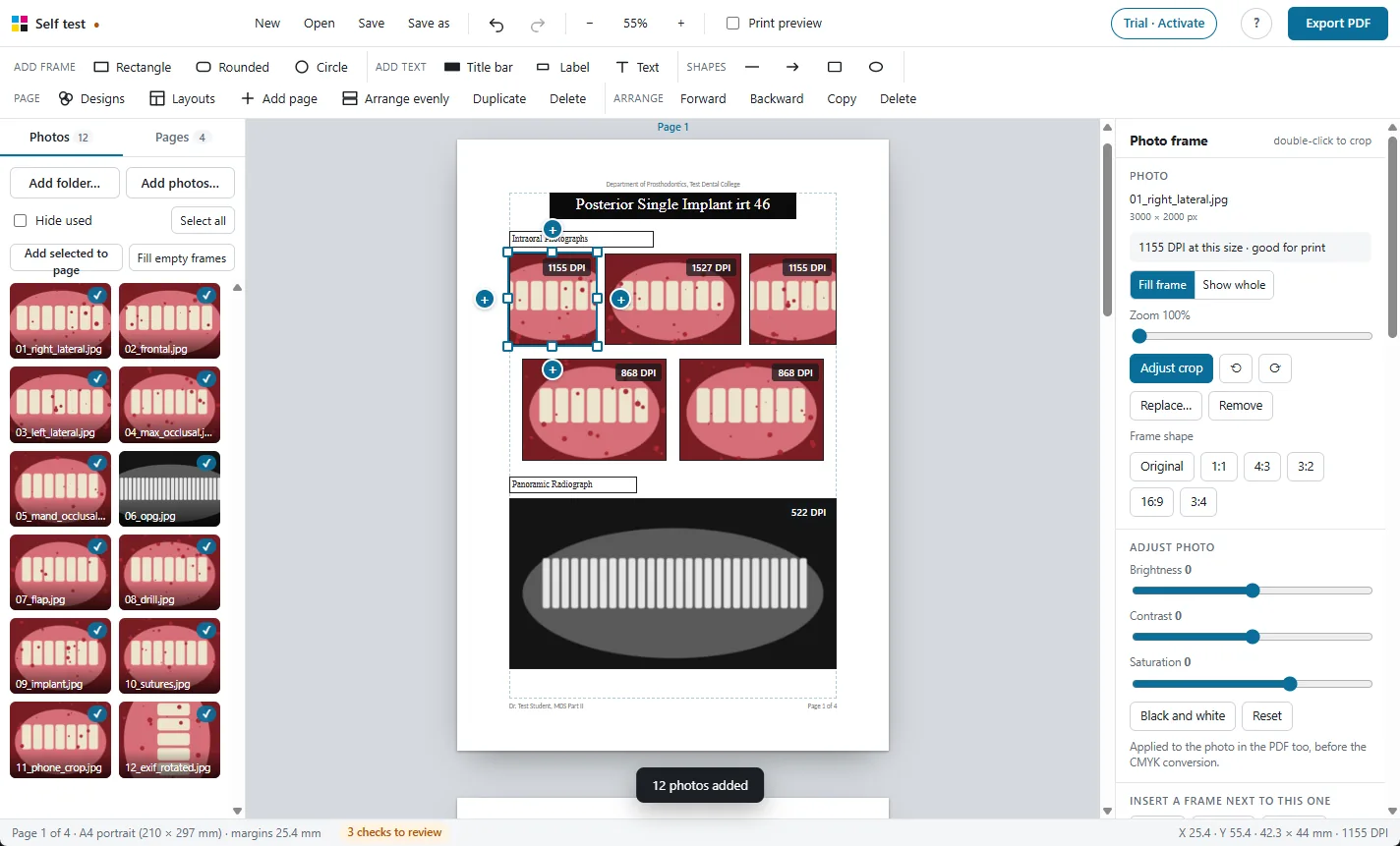
One click restyles the whole album
Twelve designs set the background, page border, title bars, label boxes, captions and frame style together. Change the font of every caption from one panel.
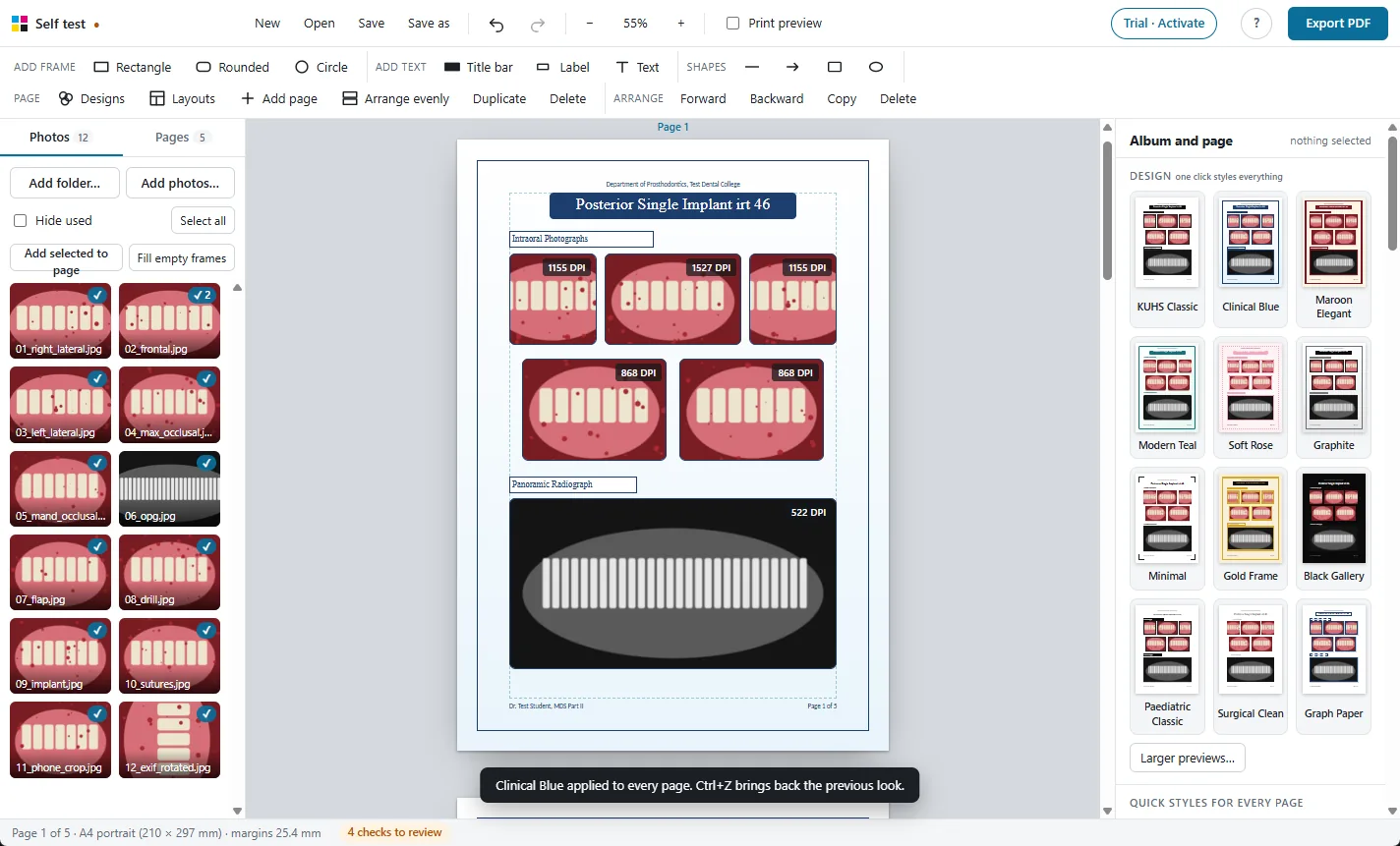
What students use most
- Captions above and below each photo, moving with it
- Frames that never overlap, with a 3 mm gap kept for you
- Arrange evenly or fill the page in one click
- Brightness, contrast, saturation and black and white
- Crop, zoom and rotate inside the frame
- One click to restyle every page with a design
- Change the font of every caption at once
- KUHS case pages with title bars and the OPG frame
- Add a folder of photos, many pages at a time
- Header, footer and page numbers on every page
- Warnings for blurry photos before you print
- CMYK PDF made for the print shop's press
Everything in the app
Each feature has its own page with screenshots.
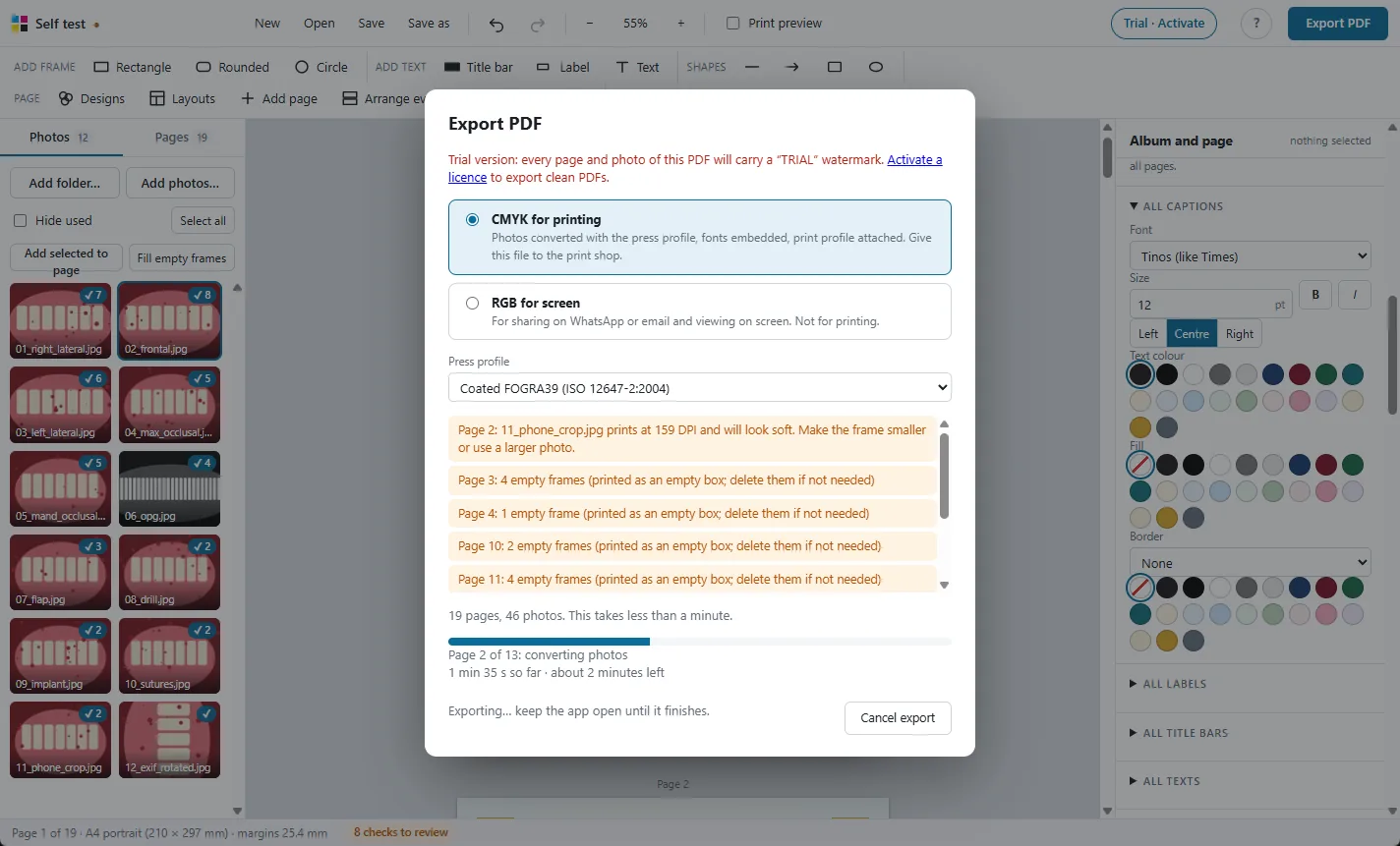
Print-ready CMYK PDF
Photos converted with the press colour profile, so prints match the screen.
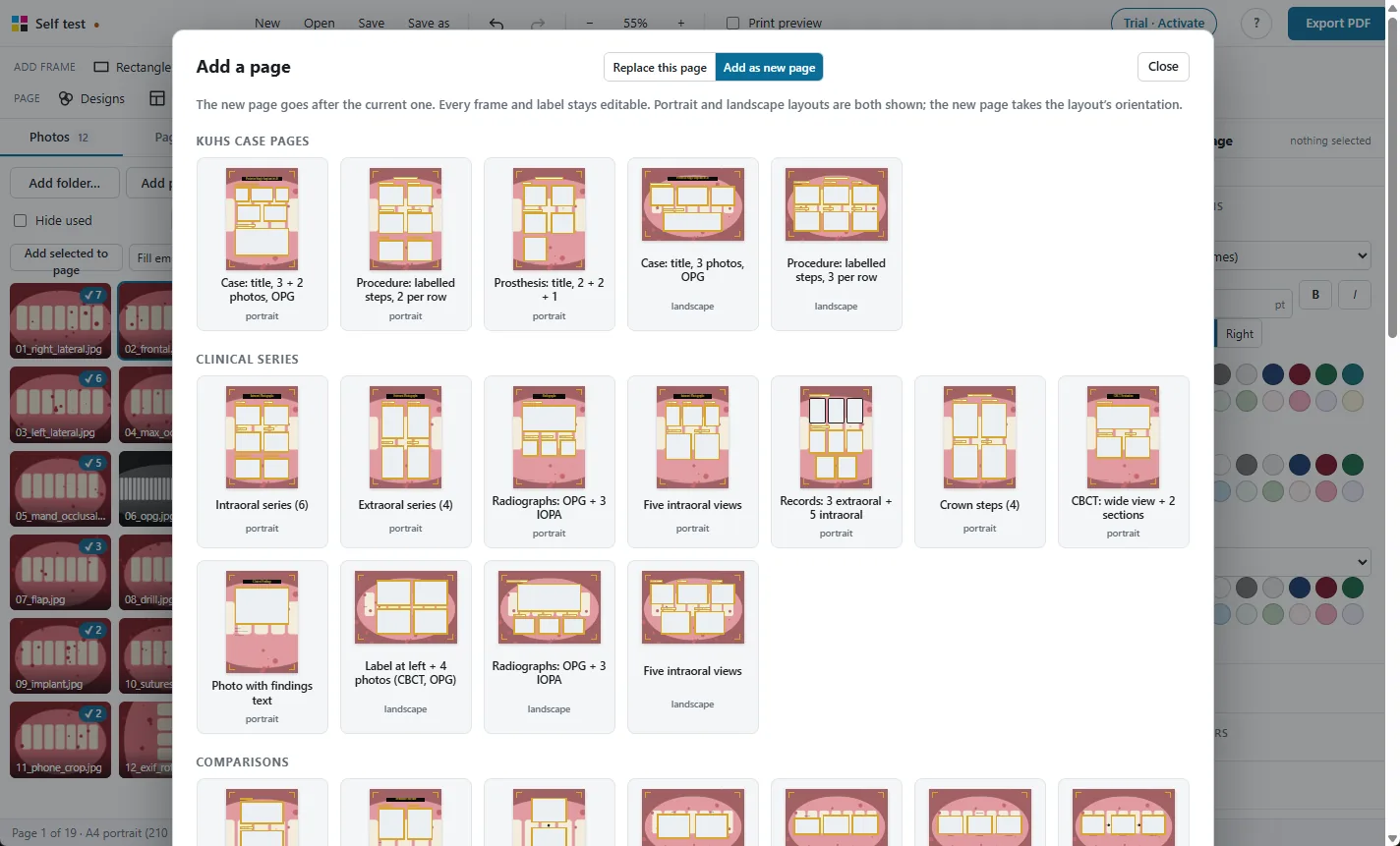
98 ready layouts
Pages for every MDS department, KUHS case pages, comparisons and new collage designs.
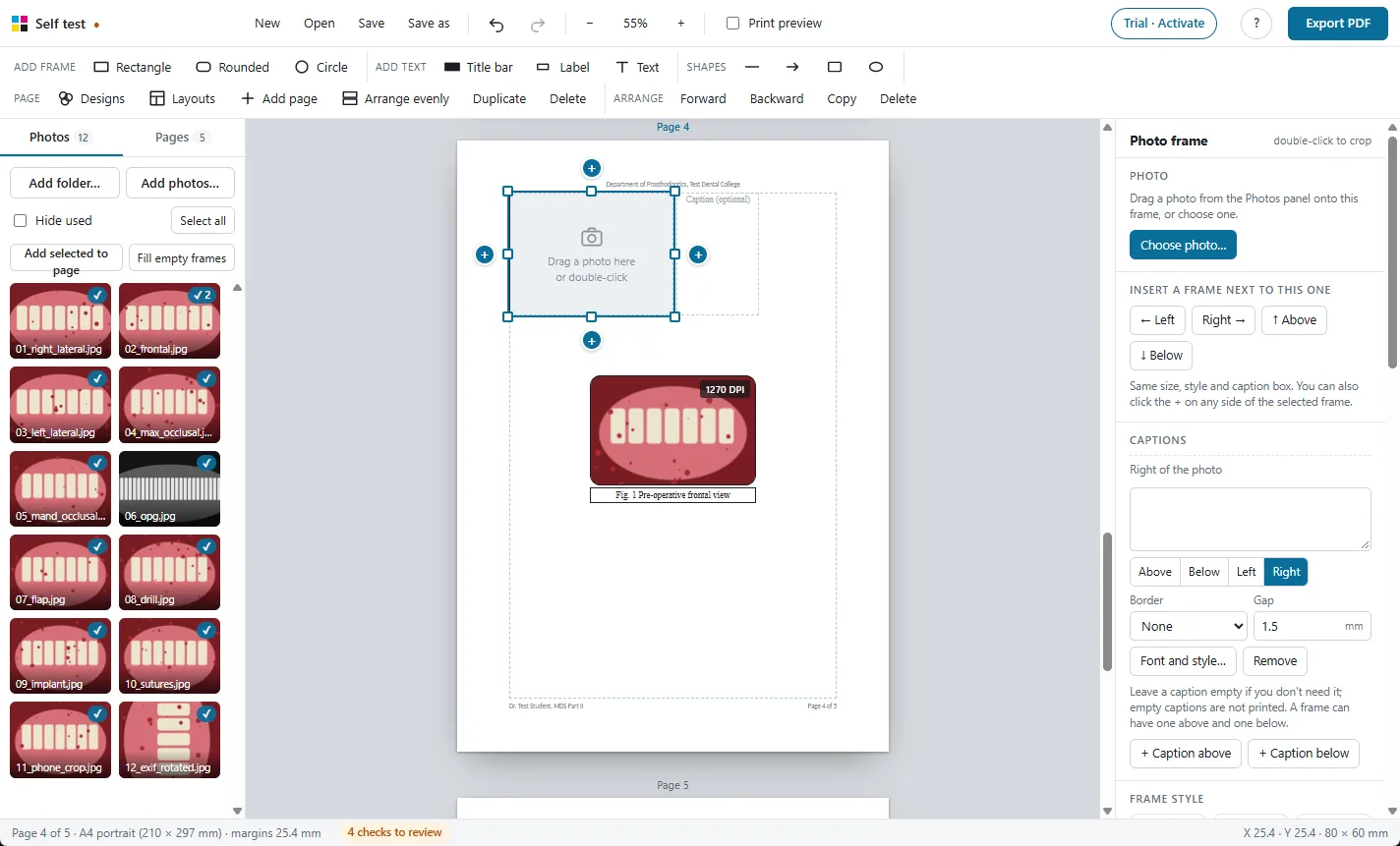
Frames and captions
Every photo gets a frame and a caption. Frames never overlap.
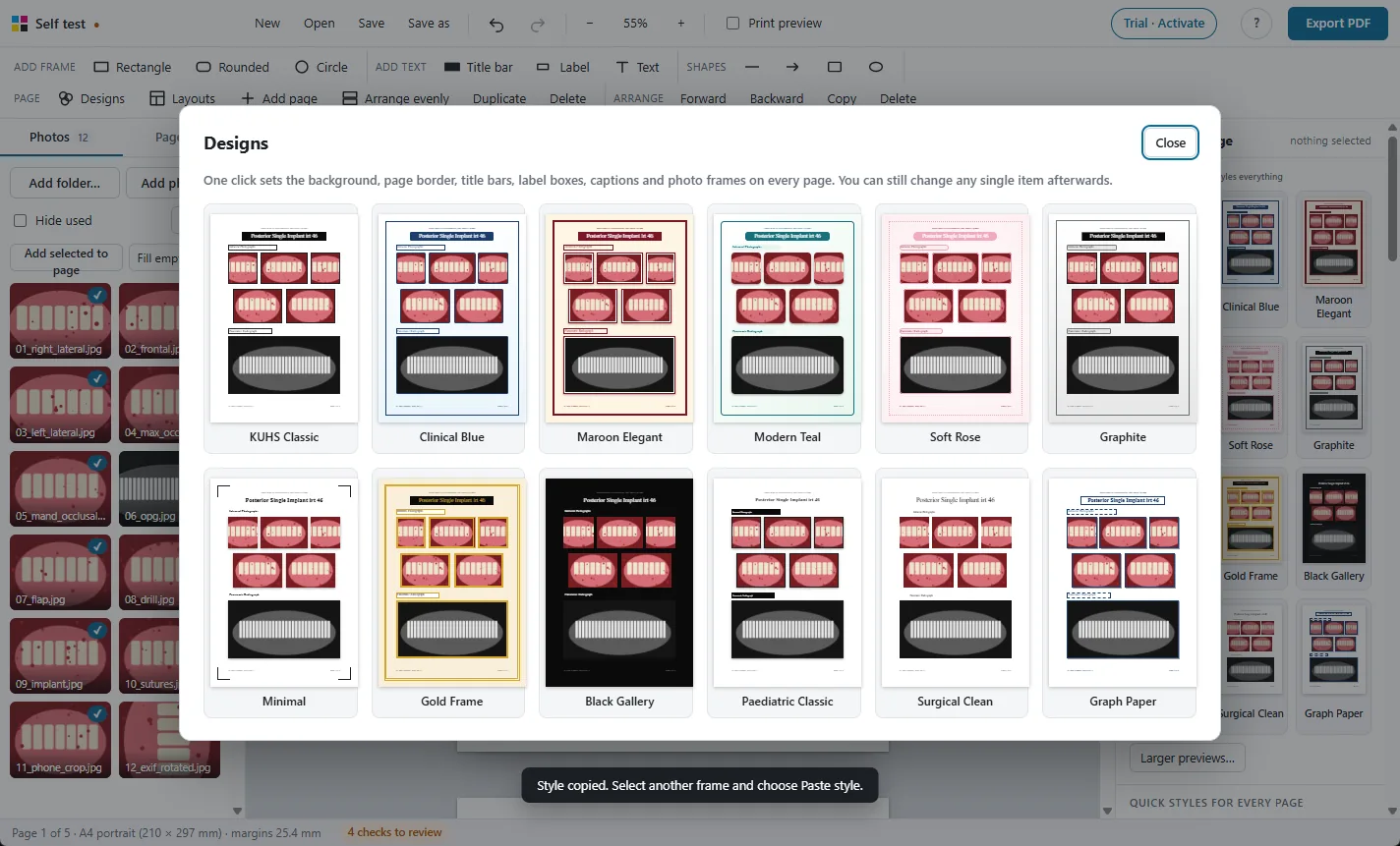
One-click designs
Restyle the whole album, change every caption's font at once.
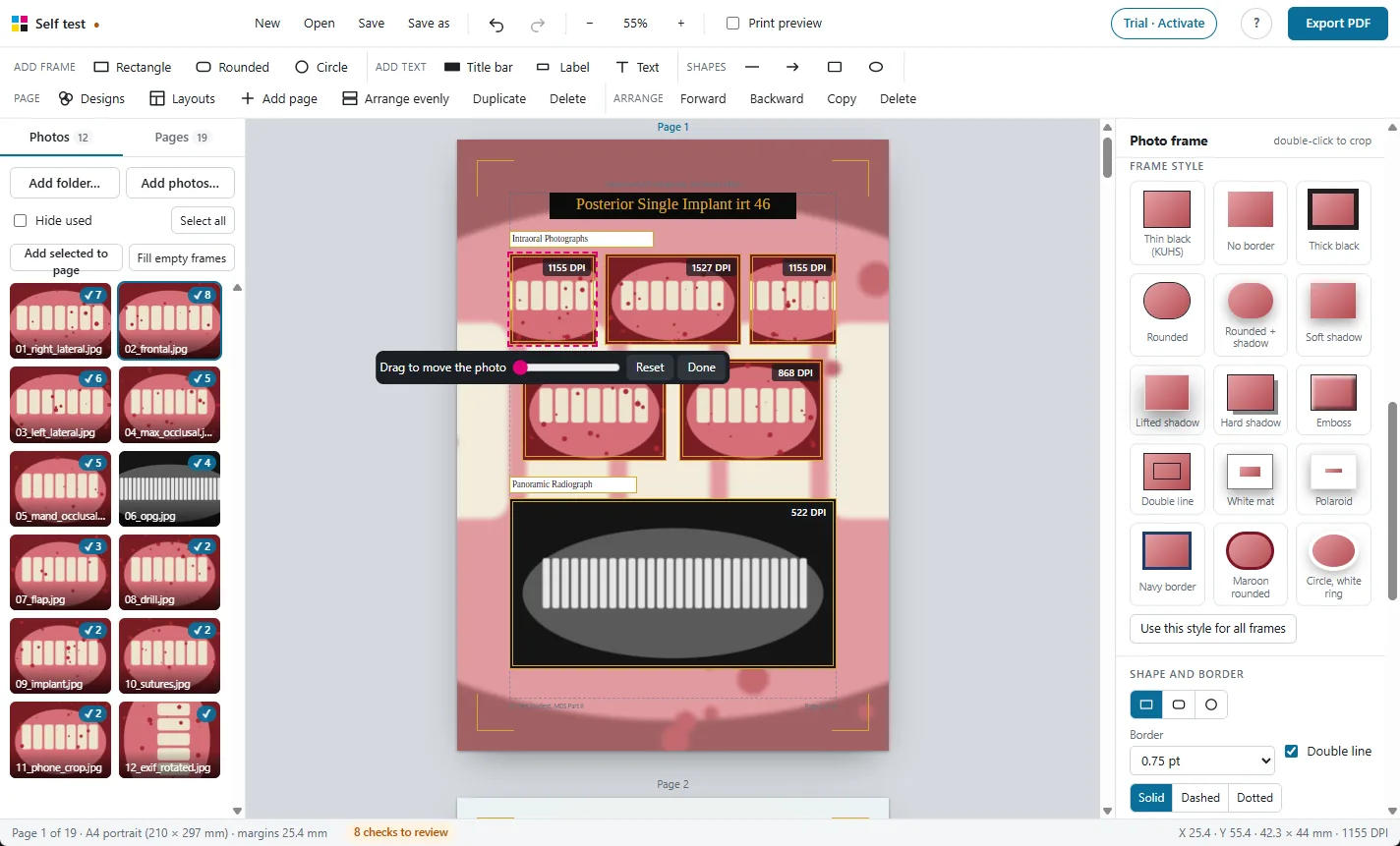
Crop, adjust and check
Crop, rotate, brighten, and see the print DPI of every photo.
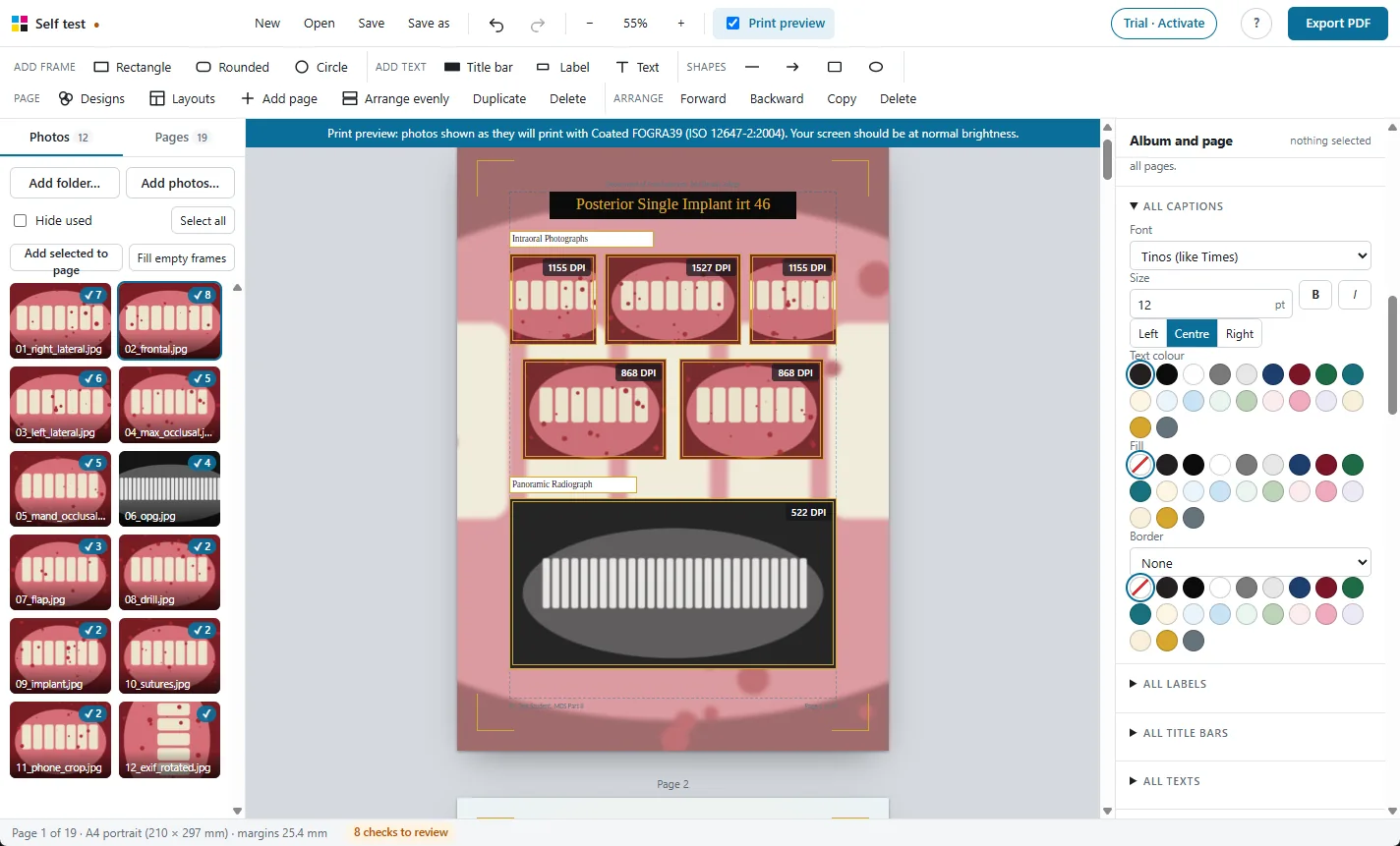
Print preview
See on screen how the photos will look on paper before you print.
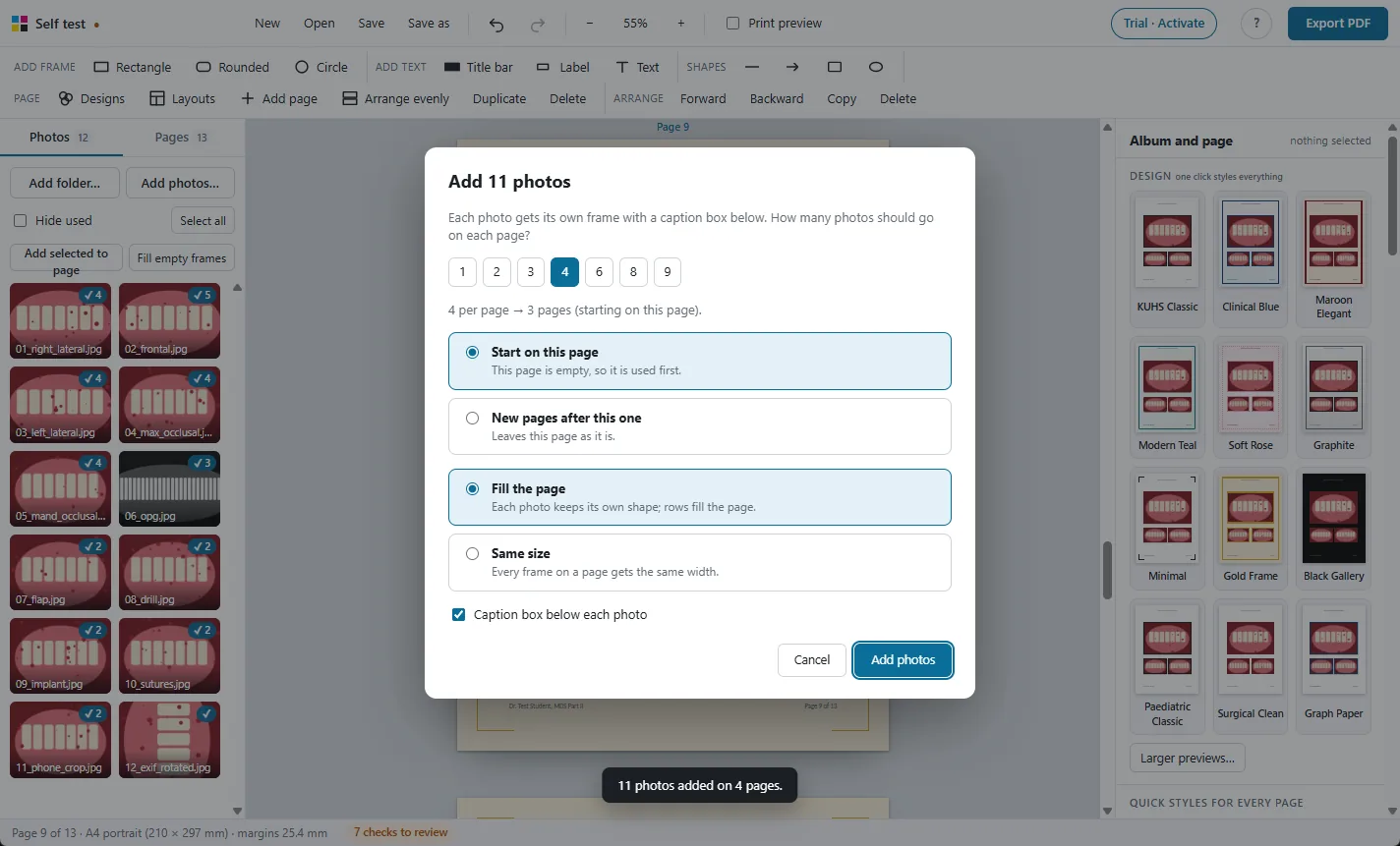
Large albums
Hundreds of photos and 250 pages, with autosave and project files.
Photos stay on your PC
A Windows app that works offline. Nothing is uploaded.
Try it free on your own photos
Every feature works in the 30-day free trial. Exported PDFs carry a TRIAL watermark until you activate a licence: ₹500 for one year.