Frames and captions
The fiddly part of an album, done for you: frames that line up, captions that follow their photo, and pages that never end up with one picture on top of another.
A caption for every photo
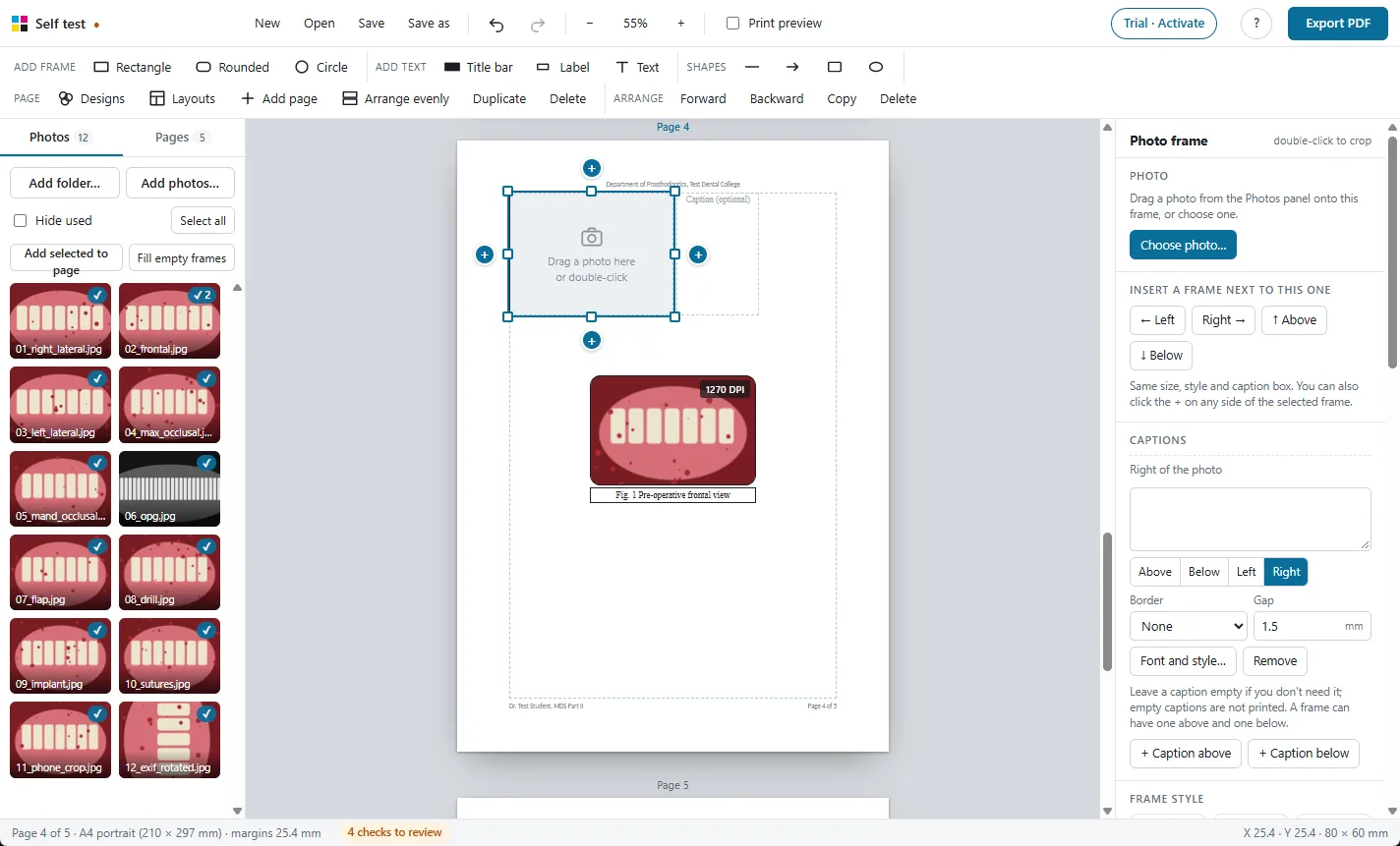
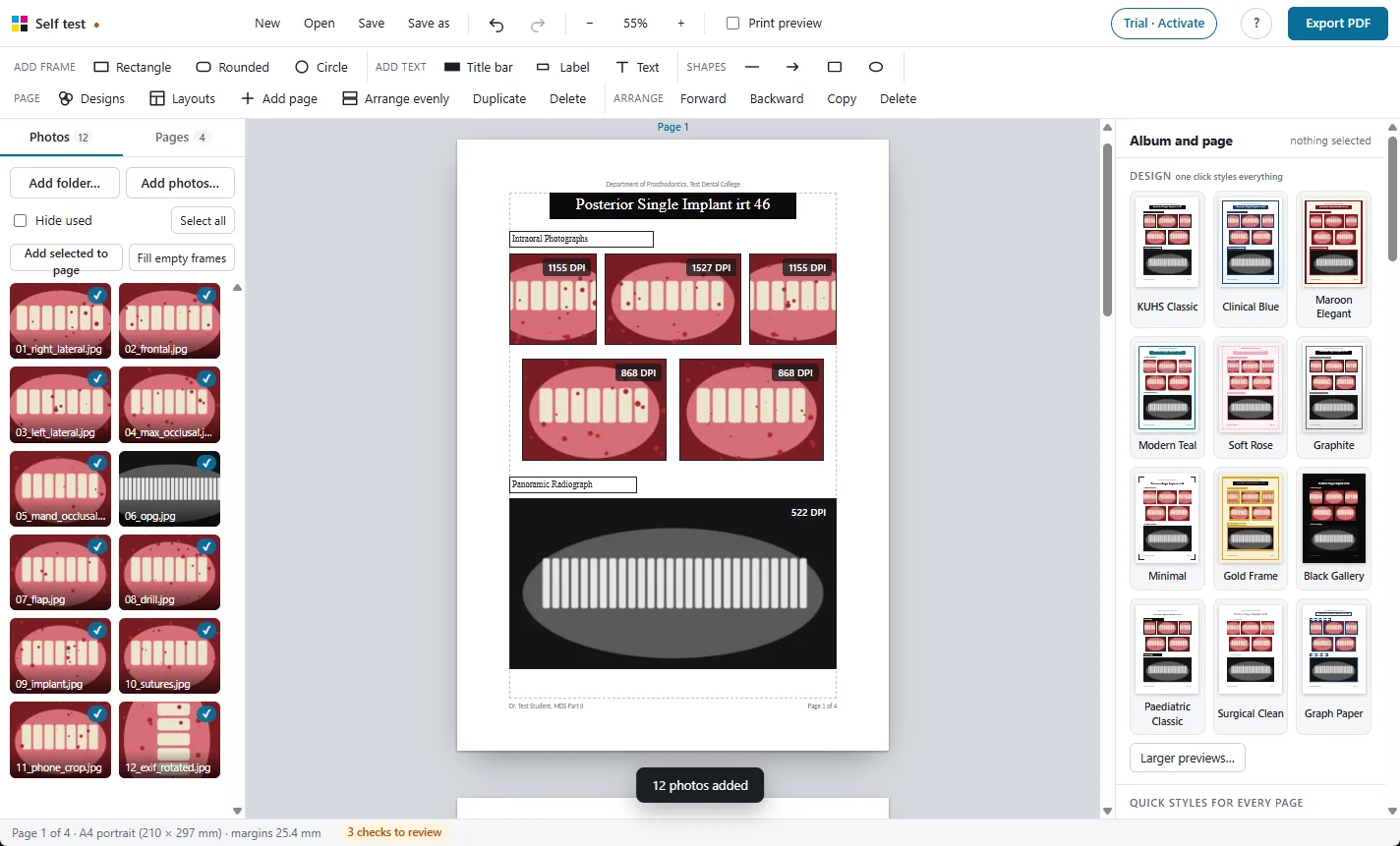
- Each frame you insert comes with its own caption box, below the photo.
- Move a caption above, below, left or right of its frame, or add one above and one below.
- Captions move and resize with their frame.
- Leave a caption empty if you do not need it: empty captions are not printed.
Frames never overlap
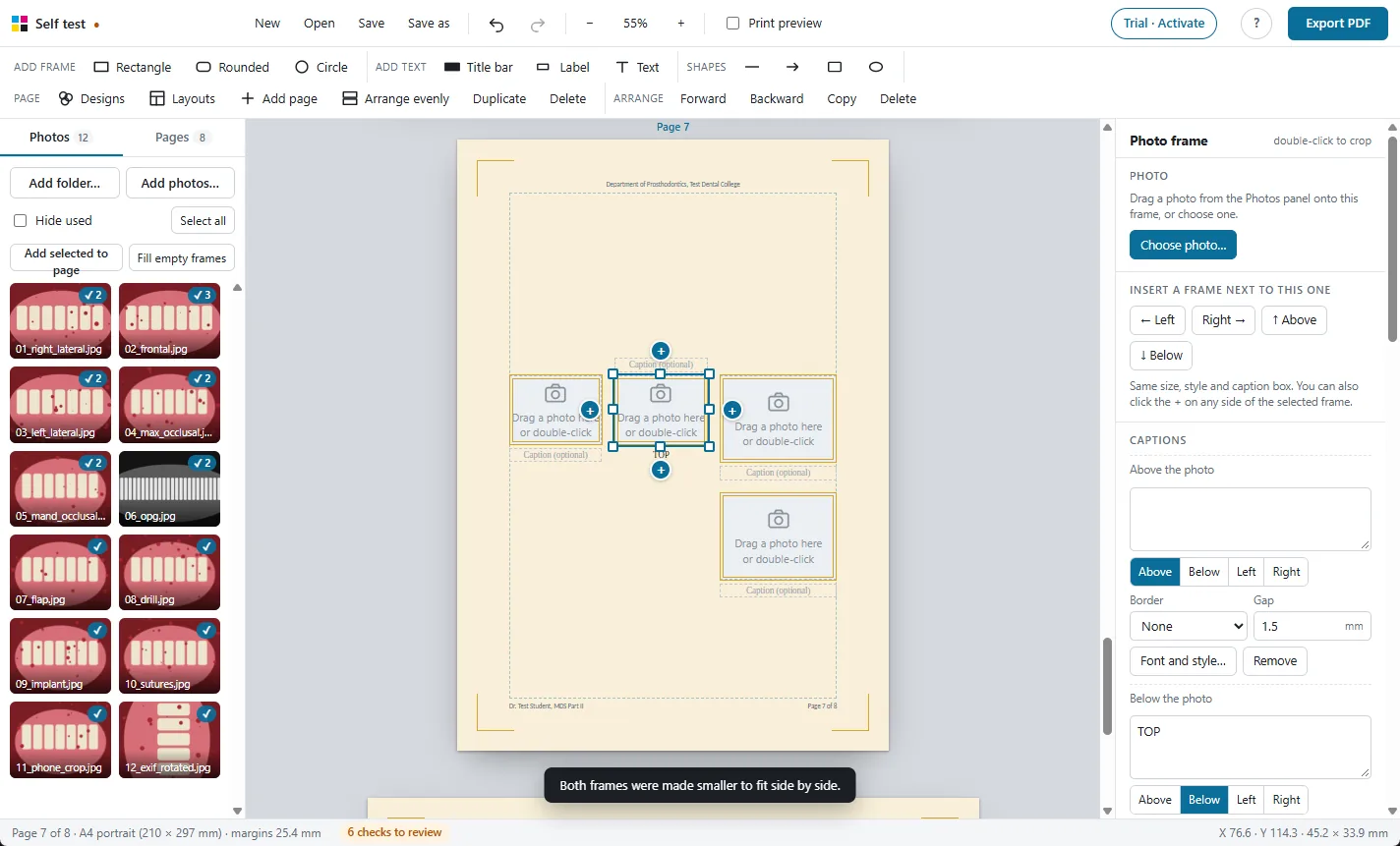
A frame and its caption count as one block, and blocks keep 3 mm apart. A move, resize or typed size that would overlap another frame is refused, and new frames go to the first free space on the page.
Frames keep the photo's proportions while you resize. Hold Shift if you really want to stretch one.
Lay out a page in one click
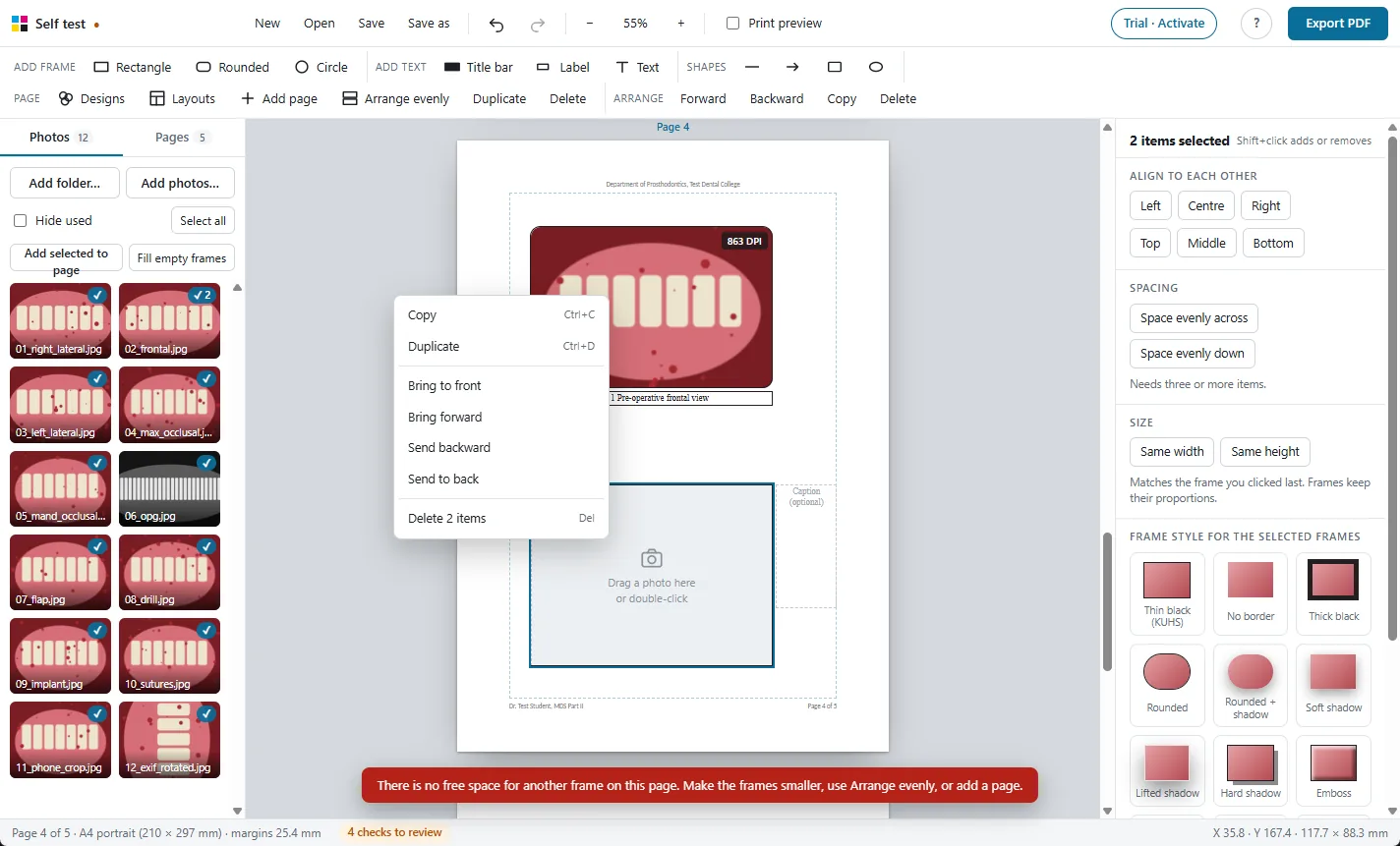
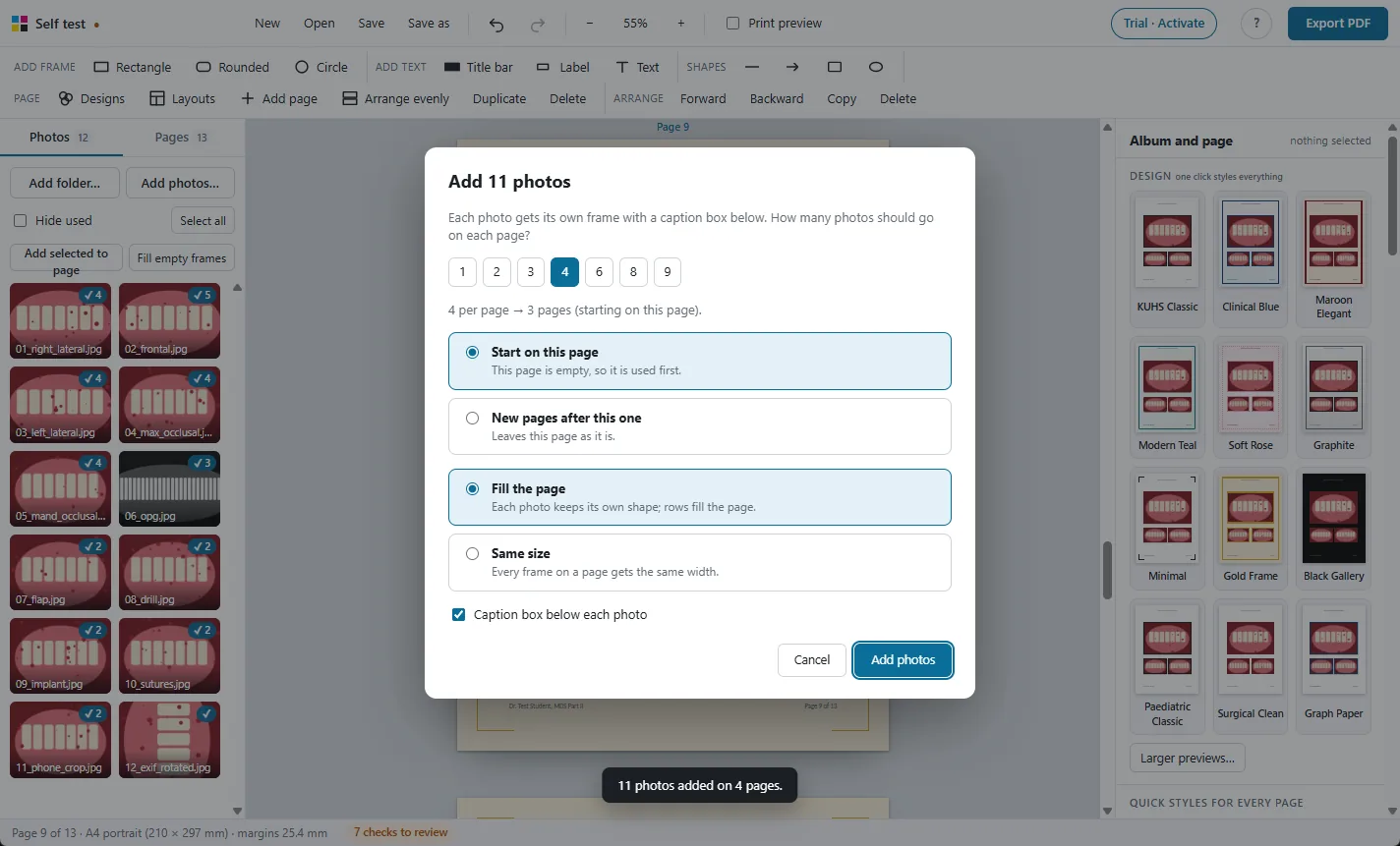
- Arrange evenly gives every frame on the page the same width, as large as fits, each in its photo's own shape.
- Fill page builds rows that fill the page while keeping every photo's shape.
- Insert next frame (the + buttons, or Ctrl+Shift+arrow) copies the size, style and caption of the selected frame, and shrinks both evenly when there is no room.
- Select several frames to align them, space them evenly, or make them the same size.
More features
Print-ready CMYK PDF
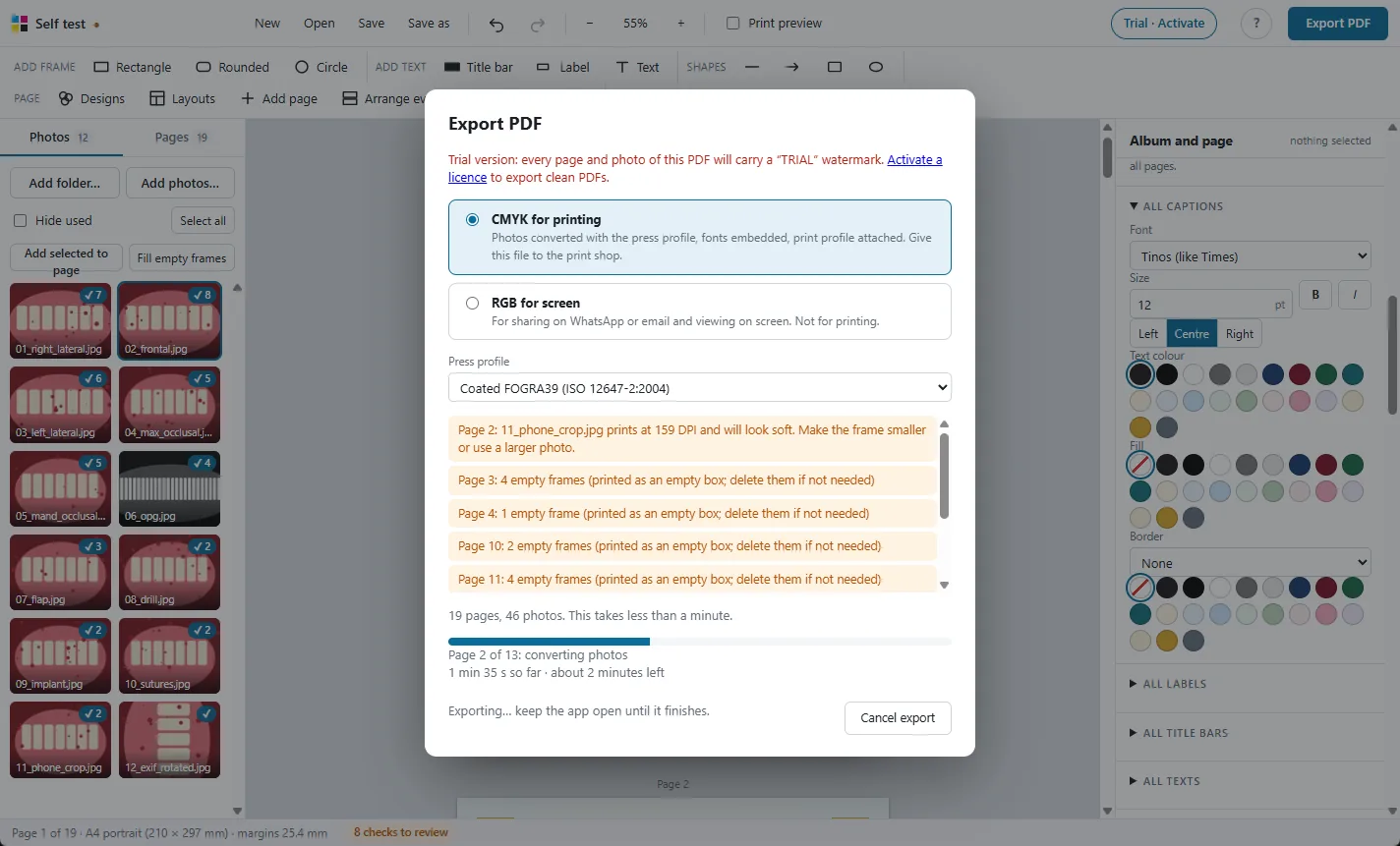
Photos converted with the press colour profile, so prints match the screen.
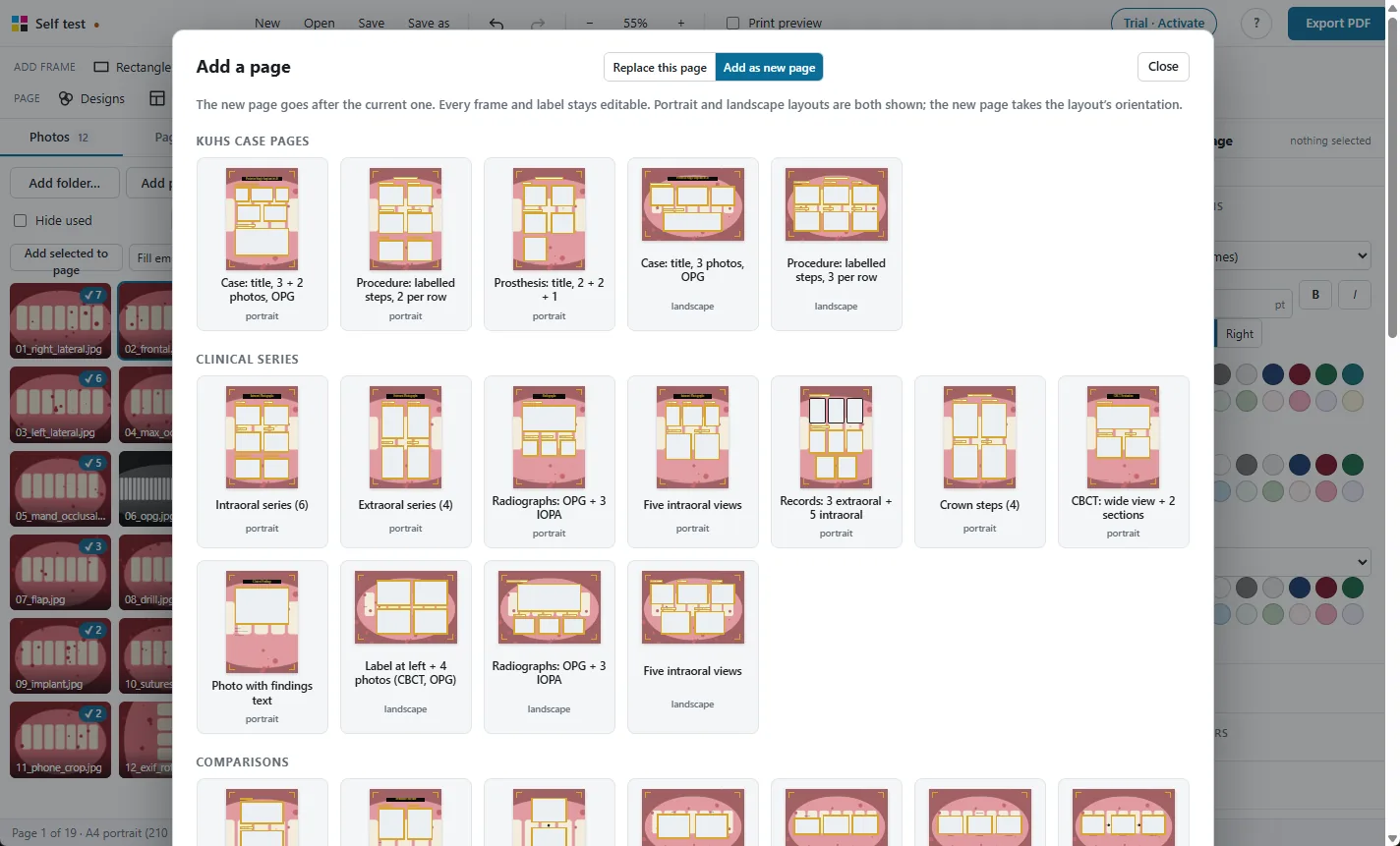
98 ready layouts
Pages for every MDS department, KUHS case pages, comparisons and new collage designs.
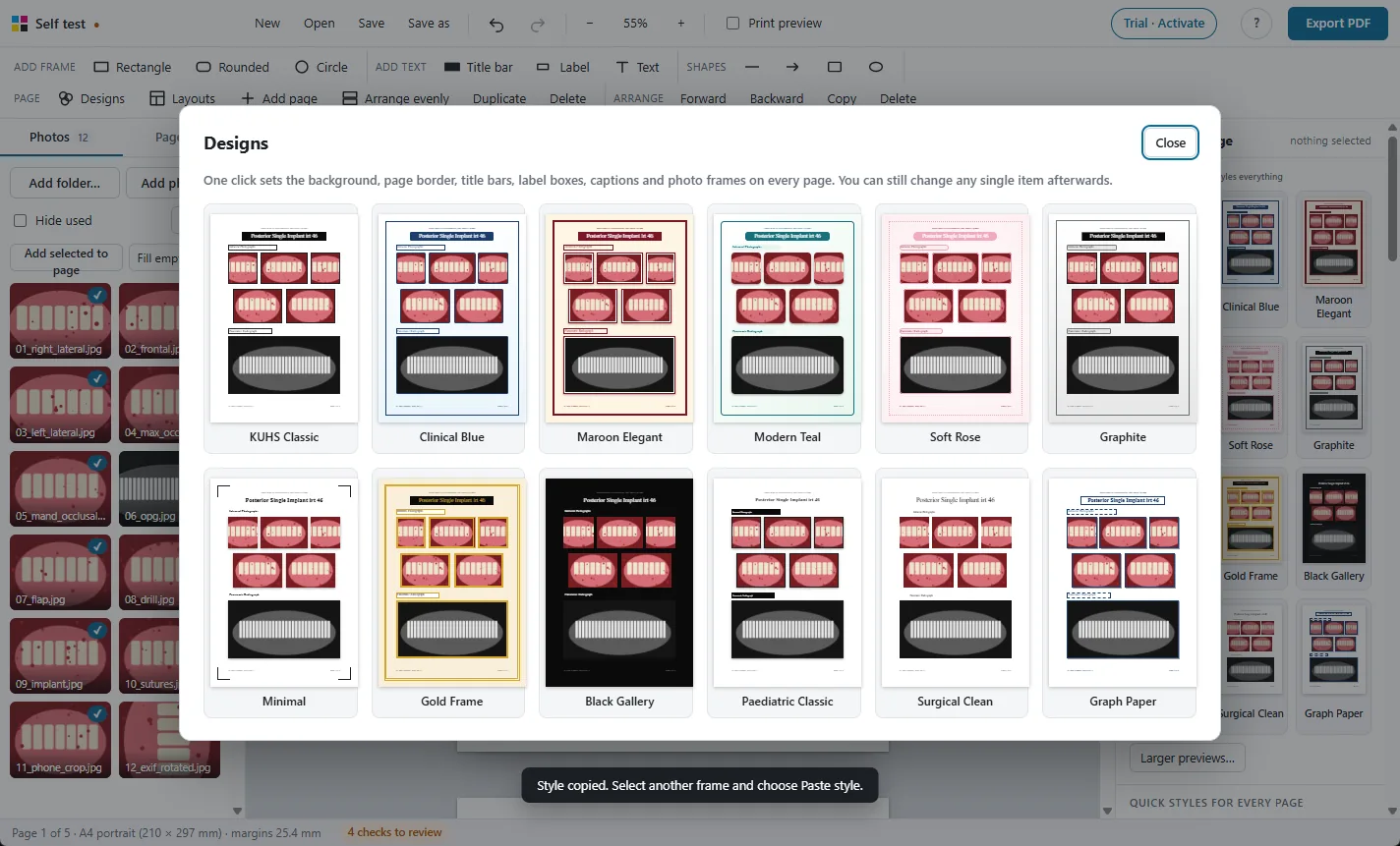
One-click designs
Restyle the whole album, change every caption's font at once.
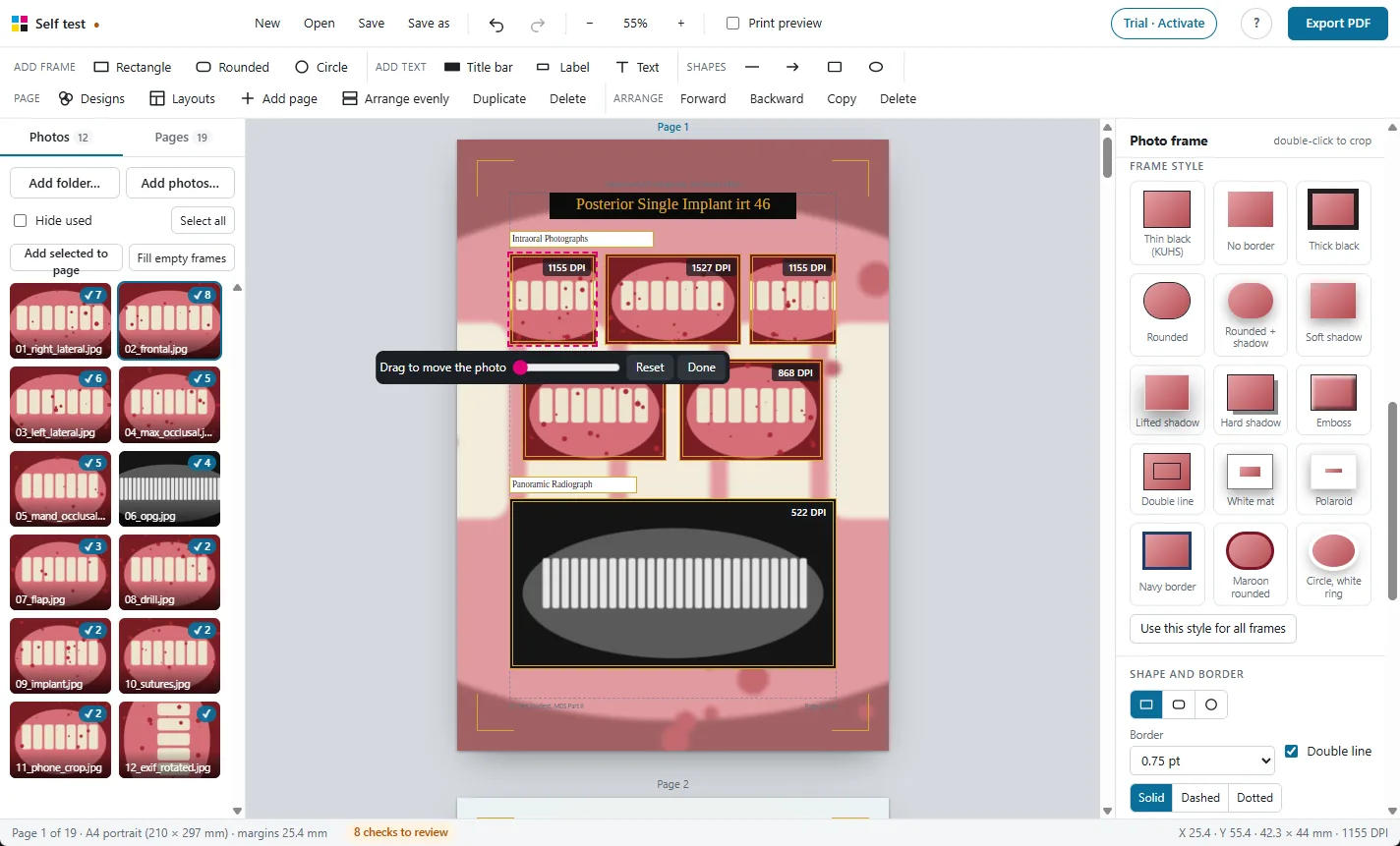
Crop, adjust and check
Crop, rotate, brighten, and see the print DPI of every photo.
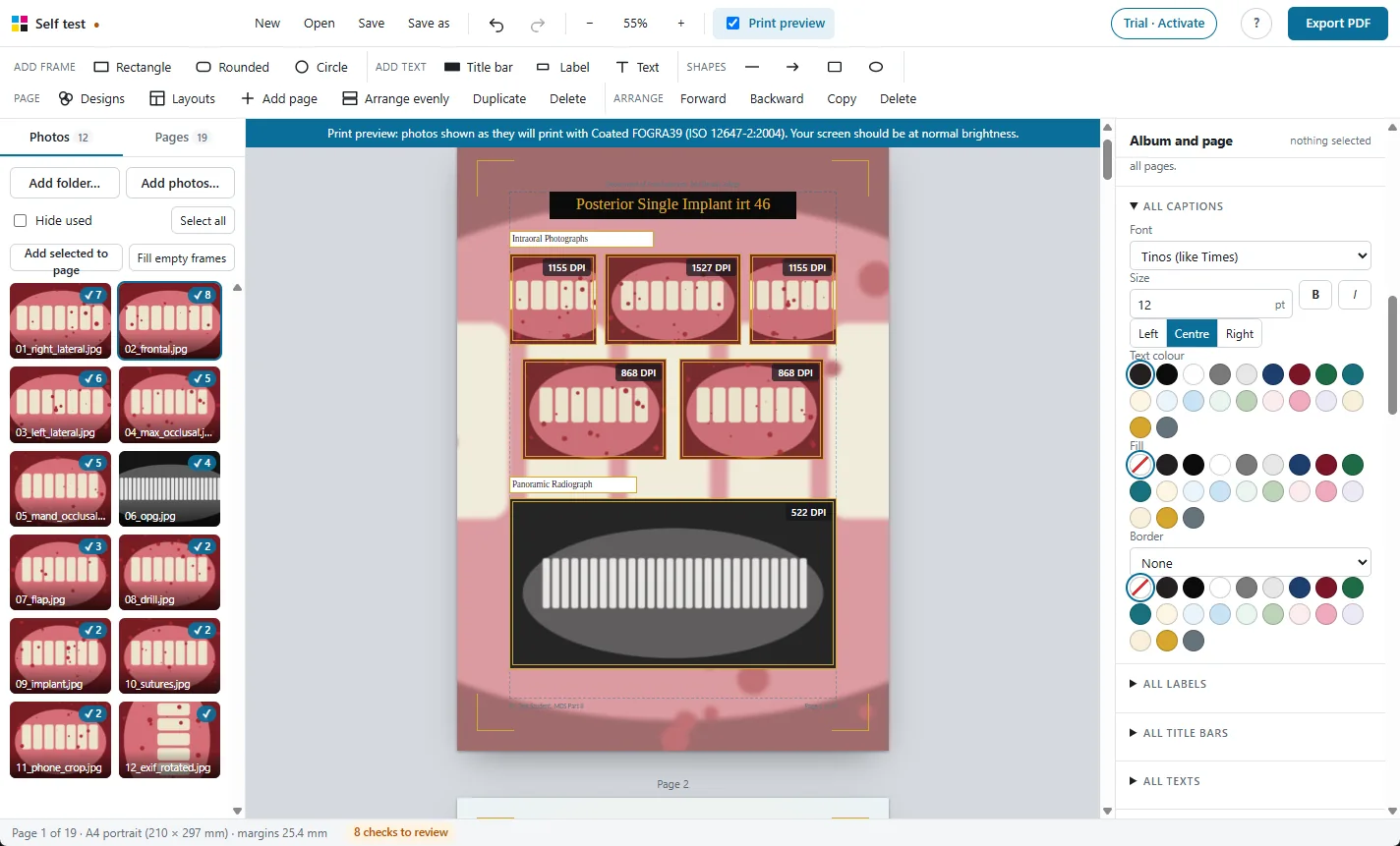
Print preview
See on screen how the photos will look on paper before you print.
Large albums
Hundreds of photos and 250 pages, with autosave and project files.
Photos stay on your PC
A Windows app that works offline. Nothing is uploaded.
Try it free on your own photos
Every feature works in the 30-day free trial. Exported PDFs carry a TRIAL watermark until you activate a licence: ₹500 for one year.